
Shared steps
Shared steps are reusable pieces of a manual scenario. Use them when the same sequence of actions appears in many test cases and should be maintained in one place.
When you change a shared step, the change is automatically reflected in all scenarios that use that shared step.
When to extract a shared step
Extract a shared step when:
- the same setup or verification sequence appears in several manual scenarios;
- the repeated block should stay consistent everywhere it is used;
- editing that block in many test cases would otherwise create drift.
Good examples are authentication, common checkout preparation, or standard environment setup.
Creating a shared step
To create a new shared step:
- Go to the Shared steps section.
- Click New shared step.
- Enter a name to describe the new shared step (for example, "Authentication").
- Click Create.
After that, the process is identical to describing a test scenario: enter the required steps and sub-steps, add attachments if required.
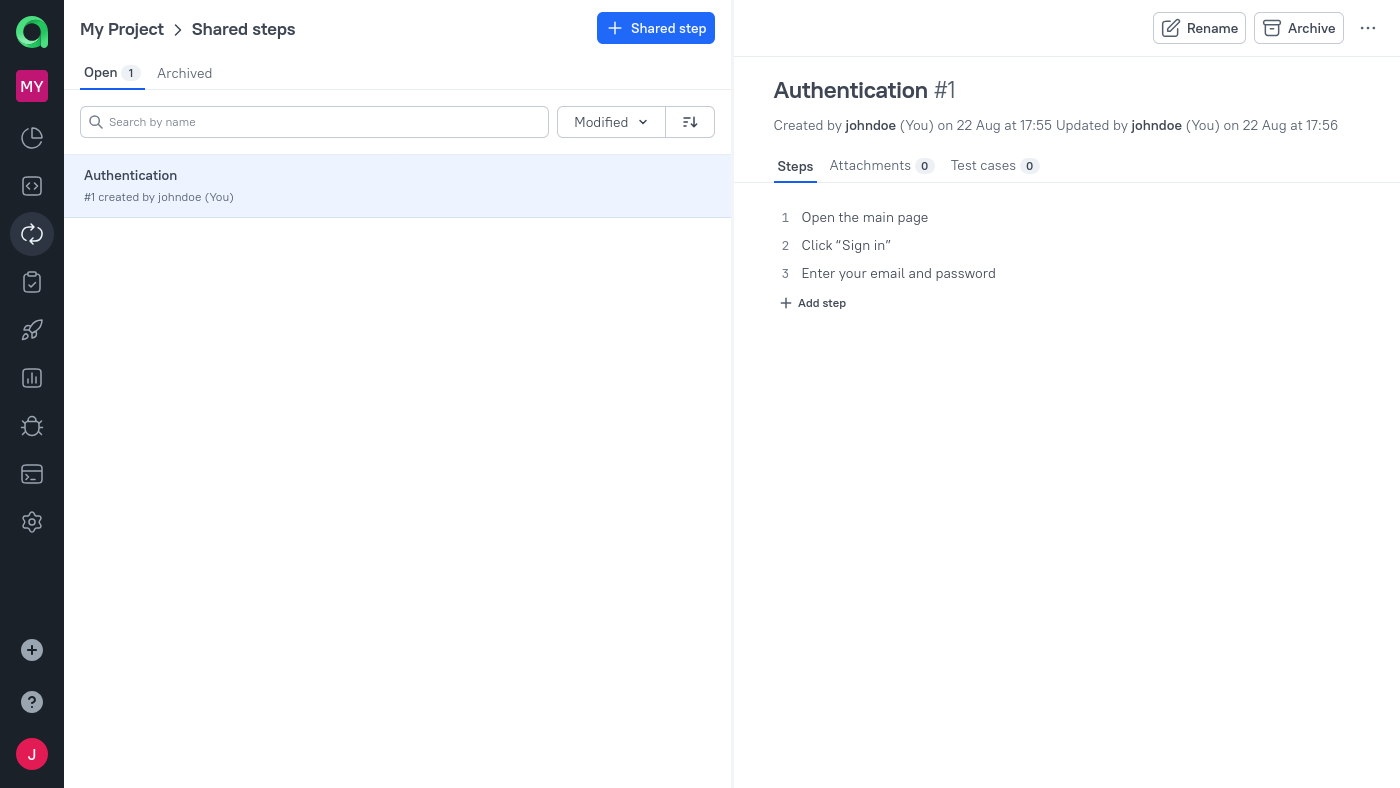
Then, the editing experience is similar to working with a manual scenario: add steps, sub-steps, expected results, and attachments as needed.
Using a shared step
To add a shared step to a test scenario:
- When editing a scenario, click
⠿on the left side of step description. - Click Shared step.
- Select the required shared step.
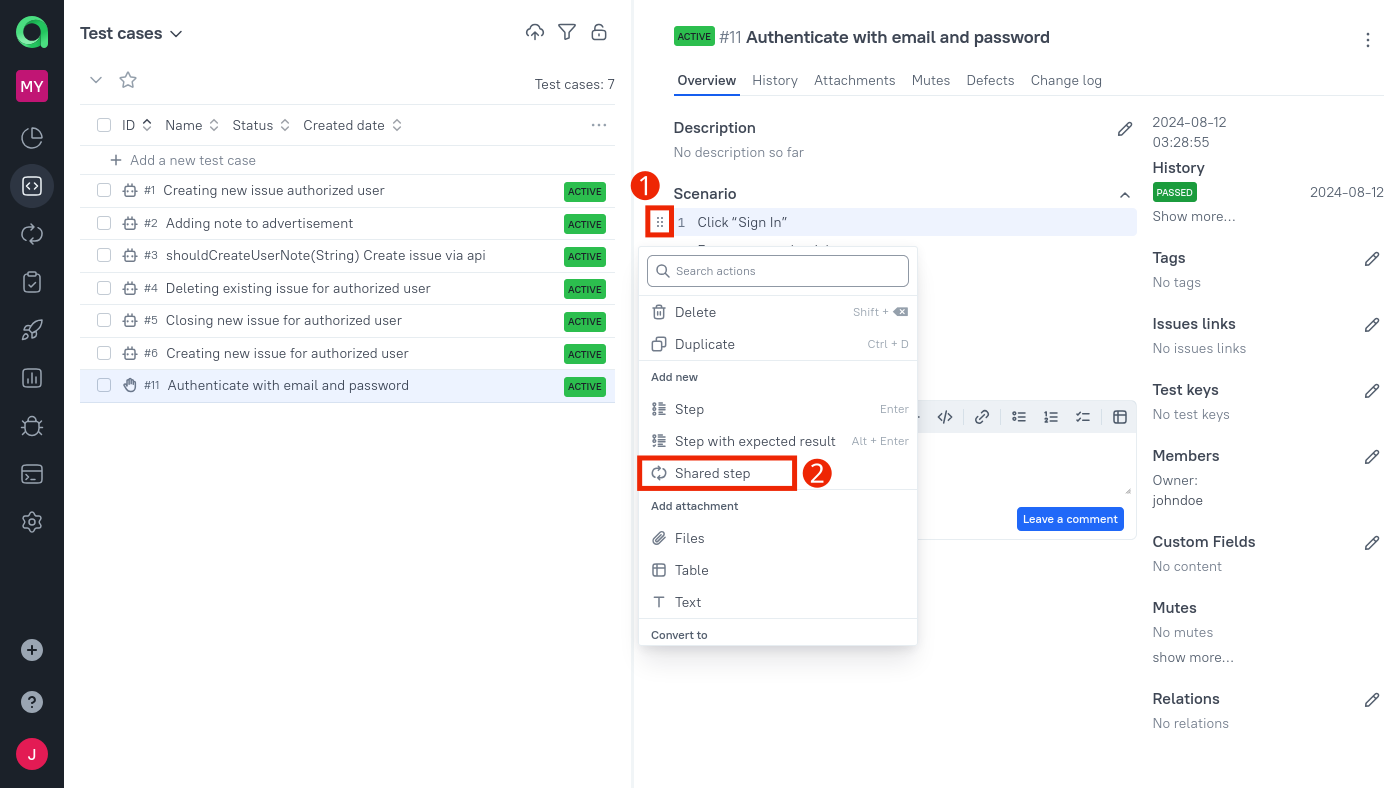
How propagation works
Shared steps are intended for reuse, not for one-time copying. When the shared step is updated, the scenarios that reference it use the updated version as well.
That is why shared steps work best for blocks that should stay synchronized across many manual test cases.
Inspecting linked test cases
If you want to know where a shared step is used:
- Open Shared steps.
- Select the required shared step.
- Open Test cases on the right side of the page.
This lets you inspect which manual test cases currently depend on that shared step before you change, archive, or delete it.
Archiving vs deleting a shared step
If a shared step is in use, it cannot be deleted, but it can be archived to prevent further usage. You can check which test cases are using a shared step by selecting it and clicking on Test cases.
To archive a shared step, select it and click Archive on the right side of the page.
To delete a shared step that is no longer in use:
- Select the required shared step in the Shared steps section.
- Click
⋯on the right side of the page. - Click Delete in the displayed menu.
Use Archive when the step should stop being reused but existing references still matter.
Use Delete only when the shared step is no longer in use anywhere.
Next steps
Manual test scenario for the scenario editor.
Attachments for supporting evidence in manual scenarios.
Test management for the broader manual authoring workflow.
