
Bitbucket CI
Bitbucket CI integration uploads test results from a Bitbucket pipeline to Allure TestOps using allurectl, and lets TestOps trigger Bitbucket pipelines.
Before you begin
- The URL of your TestOps instance and the numeric project ID.
- A TestOps API token for the upload path.
- A Bitbucket account and API token for the trigger path.
1. Send results from Bitbucket to TestOps
Create the TestOps token
- In Allure TestOps, click your avatar and open API Tokens.
- Click + Token.
- Enter a name for the token, for example
Token for Bitbucket, and click Create. - Copy the generated token. Save it in a secure location — it cannot be retrieved after you close the dialog.
Variables required by allurectl
Add the following environment variables to the Bitbucket pipeline that runs the tests:
| Variable | Required | Description |
|---|---|---|
ALLURE_ENDPOINT |
Yes | Base URL of the TestOps instance, e.g. https://testops.example.com |
ALLURE_TOKEN |
Yes | TestOps API token |
ALLURE_PROJECT_ID |
Yes | Numeric ID of the TestOps project |
ALLURE_LAUNCH_NAME |
Yes | Template for the launch name |
ALLURE_RESULTS |
Yes | Path to the directory where the test framework writes Allure result files |
ALLURE_LAUNCH_TAGS |
No | Comma-separated tags to assign to the launch |
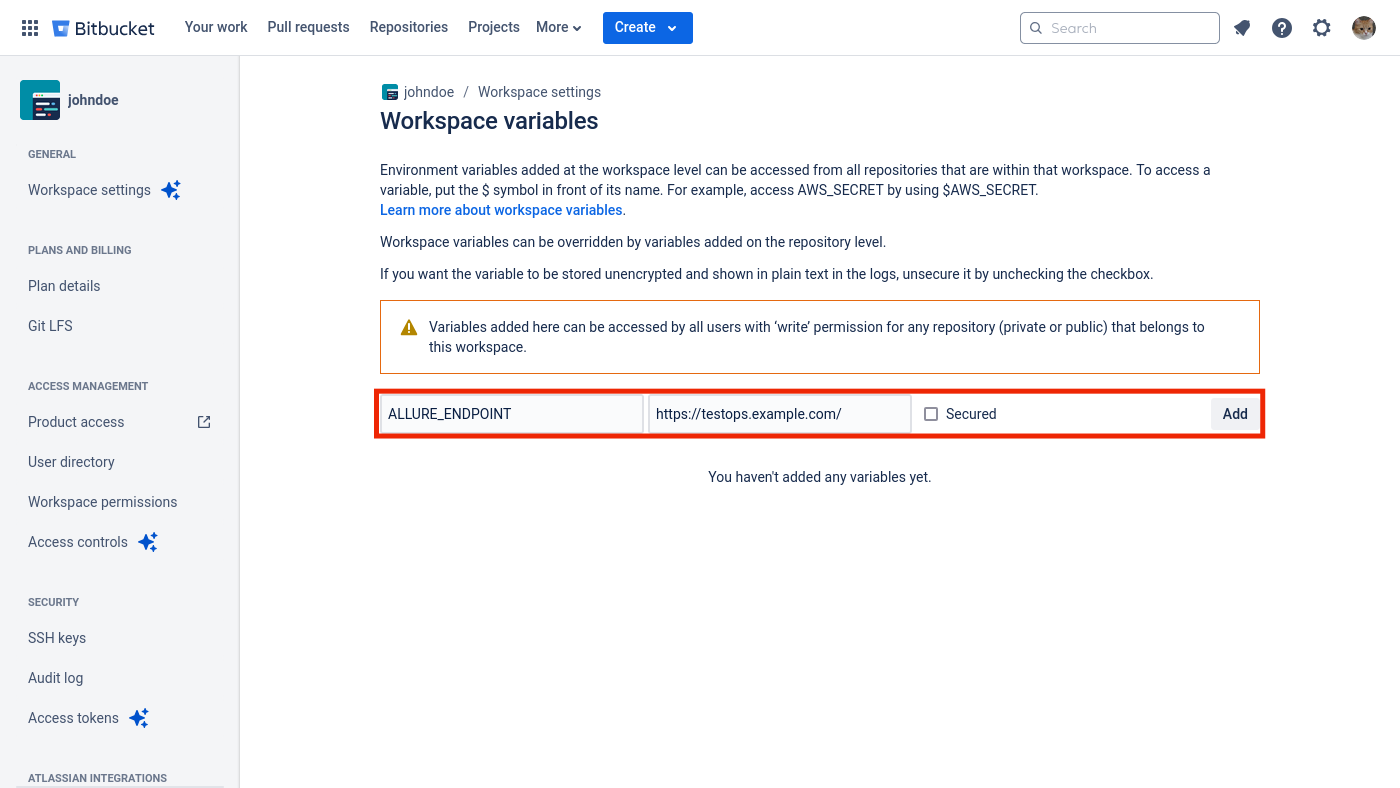
Set ALLURE_ENDPOINT at workspace level
If you have a single TestOps instance, set ALLURE_ENDPOINT once at the Bitbucket workspace level so all pipelines inherit it.
Open workspace settings at https://bitbucket.org/{ORGNAME}/workspace/settings/addon/admin/pipelines/account-variables and add ALLURE_ENDPOINT with the value of your TestOps URL.
Add variables via the pipeline UI
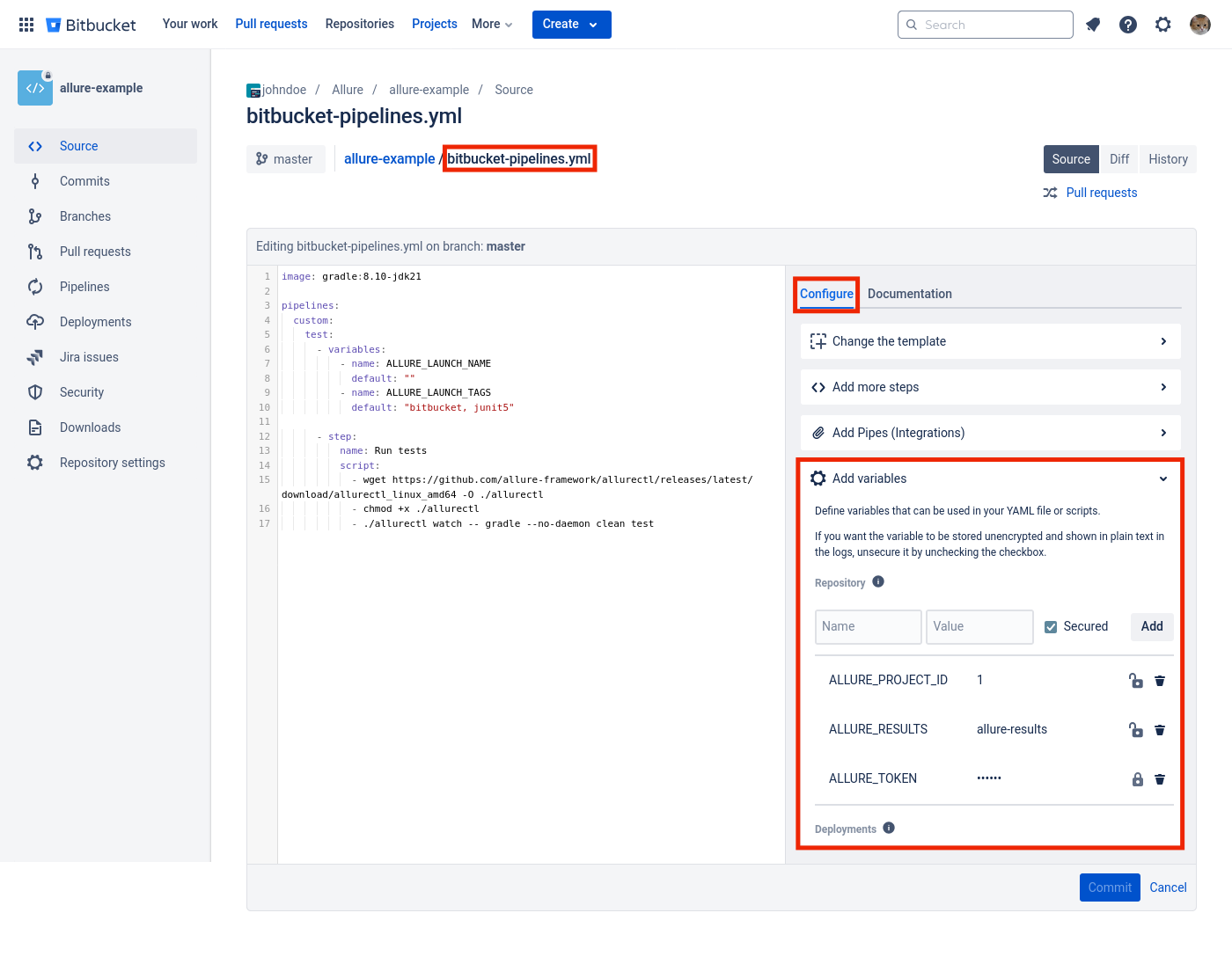
Add ALLURE_TOKEN, ALLURE_PROJECT_ID, and ALLURE_RESULTS at the pipeline configuration level:
In the Bitbucket repository, open Source and click
bitbucket-pipelines.yml.Click Edit, then Edit again.
Expand the Configure tab and find Add variables.
Add the following variables:
ALLURE_TOKEN— SecuredALLURE_PROJECT_ID— not securedALLURE_RESULTS— not secured
Configure bitbucket-pipelines.yml
Declare ALLURE_LAUNCH_NAME and ALLURE_LAUNCH_TAGS in the pipeline's variables block so TestOps can override them at trigger time. Use allurectl watch to wrap the test command:
image: gradle:8.10-jdk21

pipelines:
  custom:
    test:
      - variables:
          - name: ALLURE_LAUNCH_NAME
            default: ""
          - name: ALLURE_LAUNCH_TAGS
            default: "bitbucket, junit5"

      - step:
          name: Run tests
          script:
            - wget https://github.com/allure-framework/allurectl/releases/latest/download/allurectl_linux_amd64 -O ./allurectl
            - chmod +x ./allurectl
            - ALLURE_LAUNCH_NAME="${BITBUCKET_REPO_FULL_NAME} - $BITBUCKET_BUILD_NUMBER"
            - ./allurectl watch -- gradle --no-daemon clean test
The custom: section with a named pipeline (test: in this example) is required for triggering the pipeline from TestOps via API. The variables: block must include at minimum ALLURE_LAUNCH_NAME and ALLURE_LAUNCH_TAGS.
2. Pass environment parameters to TestOps
If tests run with parameters such as browser, host, or branch, add those as pipeline variables and map them in TestOps so launches show the environment they ran on.
Add parameters to the pipeline
Extend the variables block with the parameters you want to track:
    test:
      - variables:
          - name: ALLURE_LAUNCH_NAME
            default: ""
          - name: ALLURE_LAUNCH_TAGS
            default: "bitbucket, junit5"
          - name: PRODUCT_VERSION
            default: "1.23"
          - name: TESTS_BROWSER
            default: "chrome"
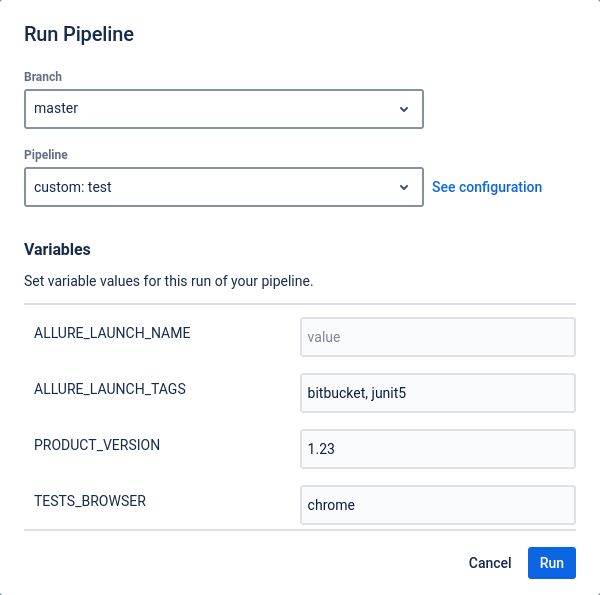
When running the pipeline manually from Bitbucket, the variables appear in the run dialog:
Set ALLURE_LAUNCH_NAME explicitly in the script so the launch name includes build context:
- ALLURE_LAUNCH_NAME="${BITBUCKET_REPO_FULL_NAME} - $BITBUCKET_BUILD_NUMBER"
Map parameters in the TestOps project
allurectl forwards all pipeline environment variables to TestOps. To surface them as launch environment labels, map them in the project settings:
In the project, open Settings → Environment.
For each parameter, click + Create:
- Mapping key — the Bitbucket variable name, for example
TESTS_BROWSER. - Environment variable — the global parameter name created by the administrator in Administration → Environment.
- Mapping key — the Bitbucket variable name, for example
Click Submit.
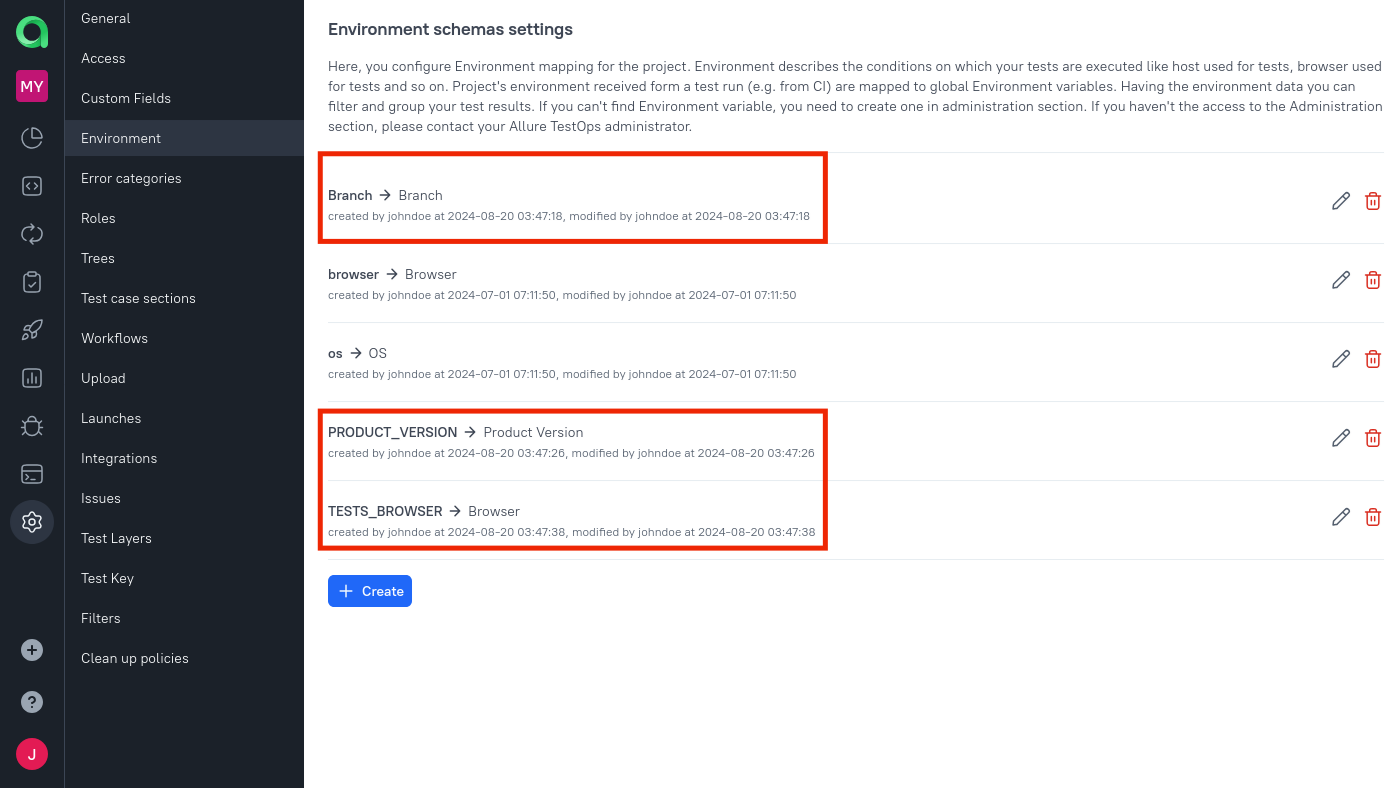
Run the pipeline once from Bitbucket. When the launch appears in TestOps, the mapped variables should show as environment labels.
3. Let TestOps trigger Bitbucket pipelines
Add the global Bitbucket integration
An instance administrator should:
- Open Administration → Integrations.
- Click + Add integration.
- Search for Bitbucket and click it.
- Fill in the fields:
- Name — a recognizable name, for example
bitbucket.org. - Endpoint — the Bitbucket URL, for example
https://bitbucket.org.
- Name — a recognizable name, for example
- Click Add integration.
Create a Bitbucket API token
Tokens are supported starting from Allure TestOps Release 25.4.1.
- Open your Atlassian account at https://id.atlassian.com/manage-profile/email and copy your email address.
- Go to Security → API tokens at https://id.atlassian.com/manage-profile/security/api-tokens and click Create API token with scopes.
- Enter a name for the token.
- Grant the following scopes:
- read:me
- read:user:bitbucket
- read:repository:bitbucket
- read:pipeline:bitbucket
- write:pipeline:bitbucket
- write:repository:bitbucket
- Copy the generated token.
Add the integration to the TestOps project
You need to be a project owner to configure these settings.
- In Allure TestOps, open the project and go to Settings → Integrations.
- Under Available integrations, find the Bitbucket integration and click Add integration.
- Enter your email address as the username and the Bitbucket API token.
- Click Test connection.
- Click Add integration.
Configure the job in TestOps
After the first successful upload, TestOps creates the job automatically:
Open Jobs, click
⋯next to the job, and select Configure.Set Build server to the Bitbucket integration added in the project settings.
Enable Job can be used to run tests.
Map environment variables from the pipeline to global environment variable names.
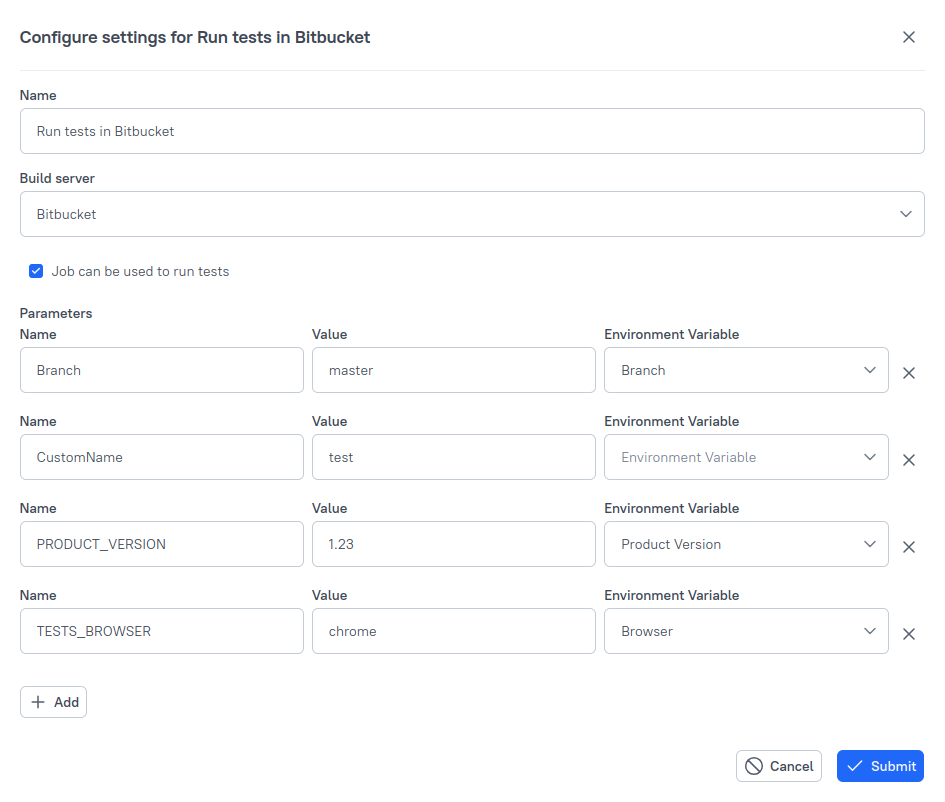
Click Submit.
Two variables require special handling:
Branch — must be mapped to the global Branch environment variable. The default value sets which branch the pipeline runs on when triggered from TestOps.
CustomName — does not map to a global variable, but requires a default value. Set it to the name of the custom pipeline in
bitbucket-pipelines.ymlthat TestOps should trigger.
Trigger a pipeline from TestOps
A TestOps-triggered build can be started from:
- Test cases — select cases and use the bulk Run action.
- Test results — select results and use ReRun.
- Test plans — click Run on a test plan.
- Jobs — click Run on a job.
To run with different parameters, open the job settings, click Add environment, set the values, and save. Multiple environments result in multiple pipeline runs that all upload to the same launch.
