
Environment
Environment describes the runtime context of a test execution: browser, operating system, branch, device, host, or any other condition your team needs to track separately. Environment is part of execution identity: the same test can produce separate results when it runs with different runtime values. Allure TestOps stores environment values with test results, so teams can filter results in the web interface or with AQL, compare runs, and avoid merging executions that should stay separate.
Examples
When working with a web application, a manual QA engineer may want to run the same test case in different web browsers. To do so, they define multiple environments when creating a launch, each one with a different value for “Browser”. Allure TestOps generates one test result for each value, allowing the QA engineer to report their outcomes independently.
In a complex CI/CD setup, automated tests may be running on different nodes or even different operating systems. By mapping environment variables to Allure TestOps environment, the QA team can make the different runs produce separate results (not just retries). This can be useful for future analysis of the test's performance on different platforms, etc.
The four layers of environment handling
In practice, environment handling in TestOps has four layers:
- Global environment names defined by an administrator.
- Project mappings that tell TestOps which CI/runtime variable should be collected under each global name.
- Job parameters and defaults that define what values a job will pass to the CI system when TestOps starts a run.
- Launch-specific environment values entered in the Run dialog or the upload dialog for a specific execution.
Keeping these layers separate helps avoid two common mistakes:
- expecting every CI variable to appear automatically in TestOps metadata;
- expecting a launch override to change the job definition permanently.
Configuration
1. Declare environment variables
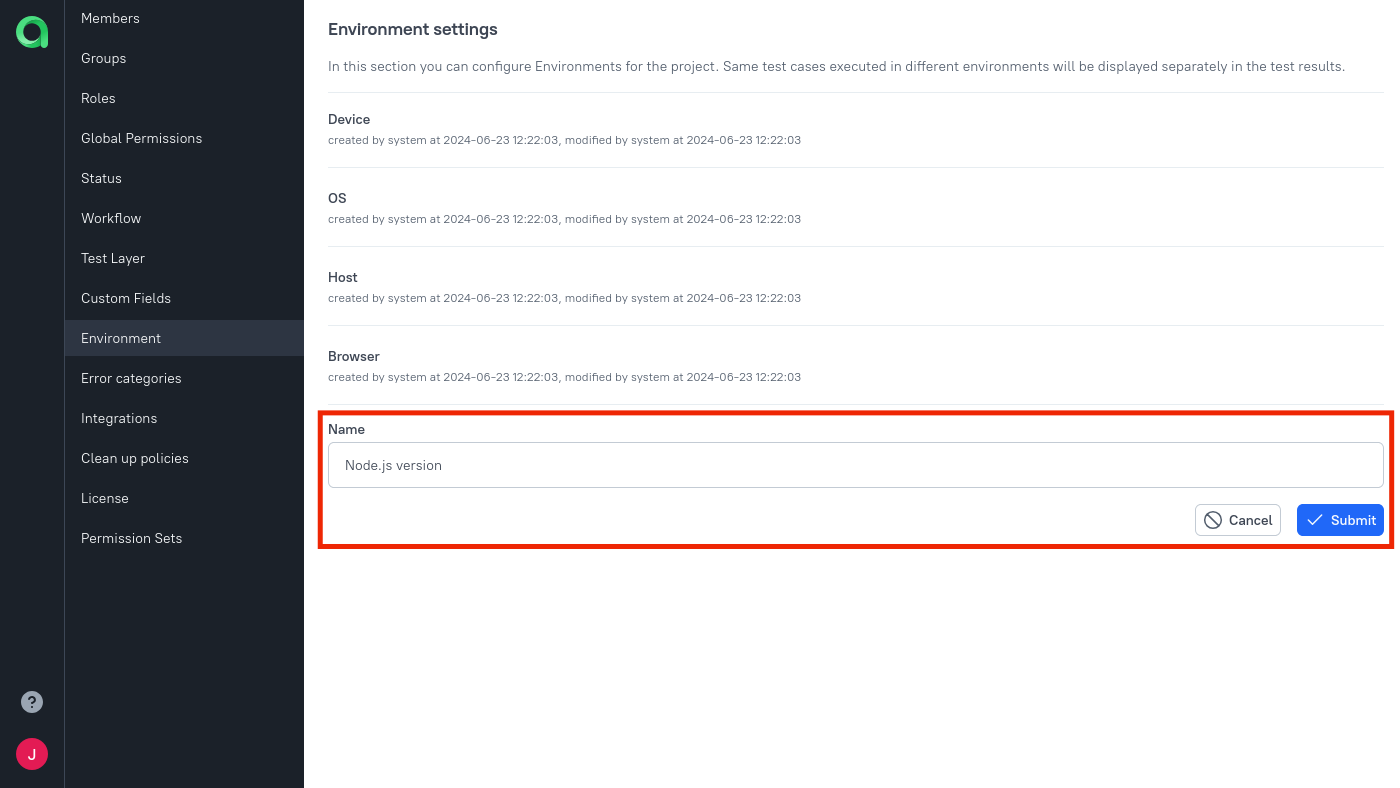
Before you can start assigning a new environment variable to your tests (either manual or automated), an instance administrator must declare the variable globally in Administration → Environment. This is to help you maintain the same naming conventions across different projects.
2. Create automated mappings
This step affects automated testing. If you only use environments for manual tests, you can skip this step.
The CI integration plugins and the allurectl utility use the operating system's environment variables as the mechanism for defining the environment for the test runtime. It is assumed that the test implementation will read relevant variables and change its behavior accordingly: for example, run the specified browser instead of the default one.
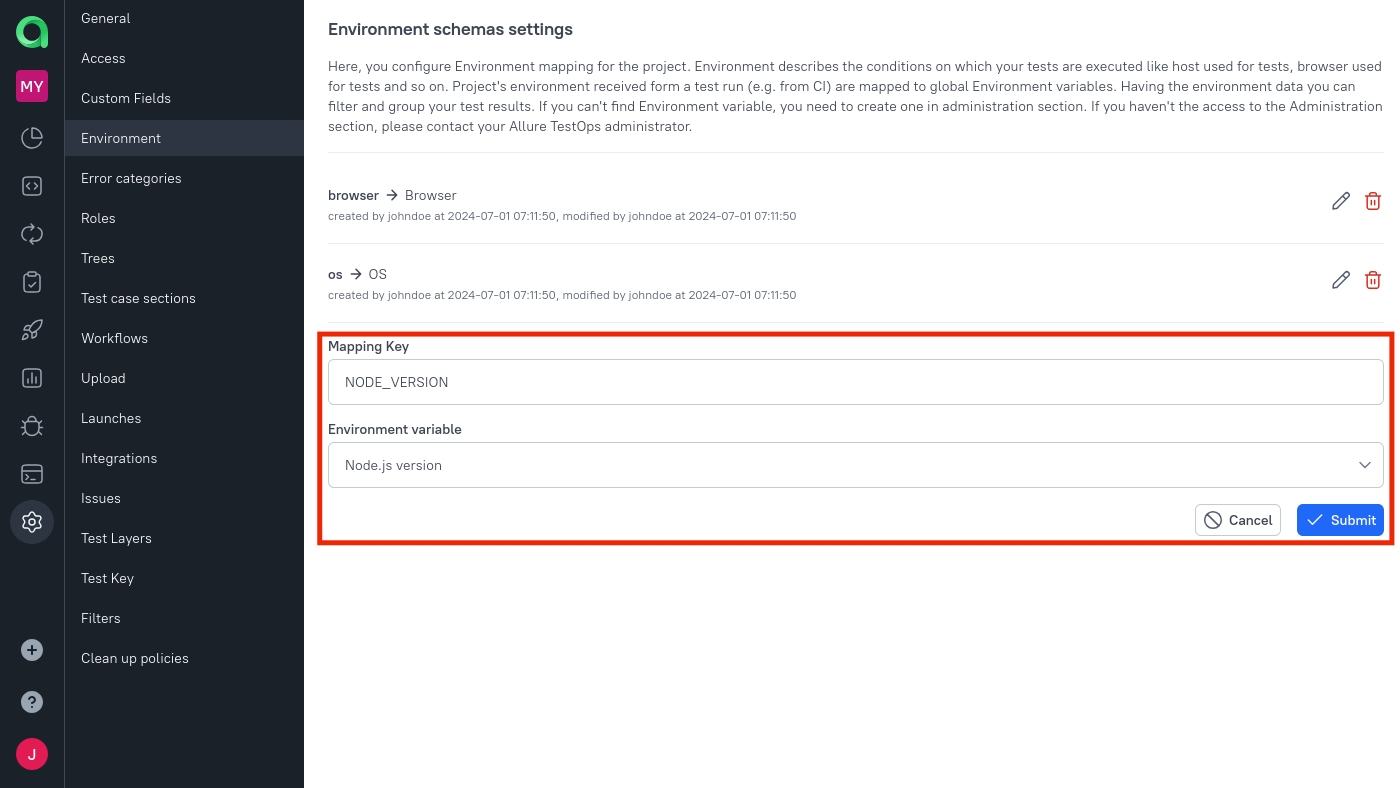
To set up this mechanism, a project owner must map the human-readable names (declared on the previous step) to the actual names of variables that the test code will look for. This is done in Project settings → Environment.
The mapping works in both directions.
When you initiate a job from Allure TestOps, it passes the necessary values to the CI system, where an integration plugin adds them to the test runtime's environment.
When a plugin or the utility sends test results back to Allure TestOps, they attach the full list of environment variables from the runtime. If the list contains any names for which a mapping exists, Allure TestOps will display their values in the test result.
Pipeline context vs launch environment
CI integrations and allurectl can see much more runtime context than TestOps
should store by default. TestOps collects only the variables you map on the
project level, which keeps launch metadata useful without filling the database
with irrelevant pipeline noise.
This is also why a rerun can split into a separate result when a mapped value changes. If the incoming environment is not the same as the one expected for the original execution, TestOps treats it as a different execution context, not as the same retry.
Usage
Run tests in environments
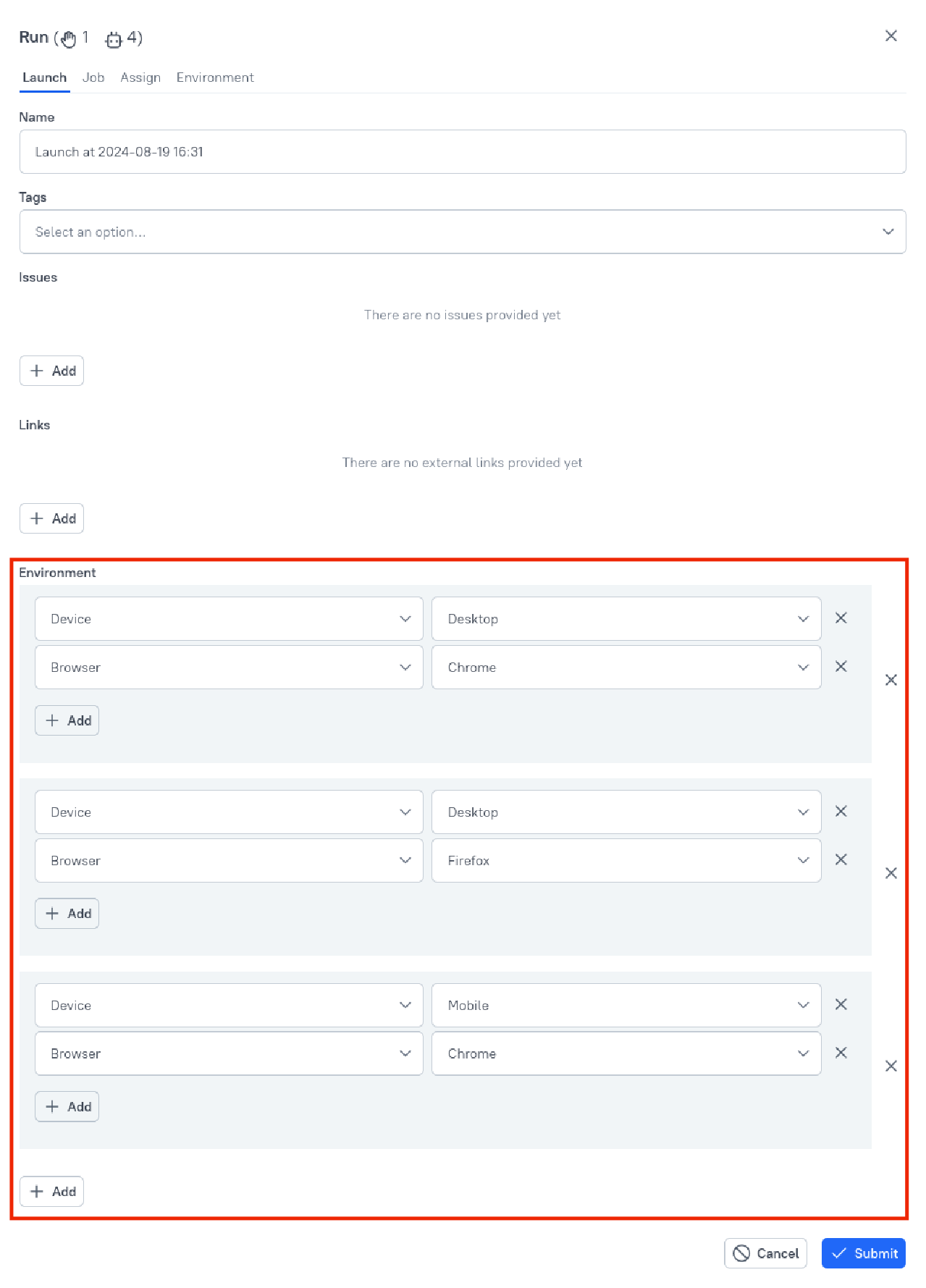
By default, when you select a test and choose Run, Allure TestOps runs it once. The default environment for the test is either an empty environment (for manual test cases) or the selected job's default environment (for automated test cases). However, it is possible to define one or even multiple environments in the Run dialog, thus creating a separate test result for each environment.
Note that the Environment section of the dialog works as a two-level list: first you add an environment, then you add a variable to the environment. For example, if you need an environment with multiple variables, make sure to click the inner Add button, not the outer one.
The screenshot below demonstrates a configuration that will run each test 3 times (for the automated tests, this means triggering 3 job runs). When used on 5 test cases, such a configuration will create a launch with 15 different test results.
Upload test results with environments
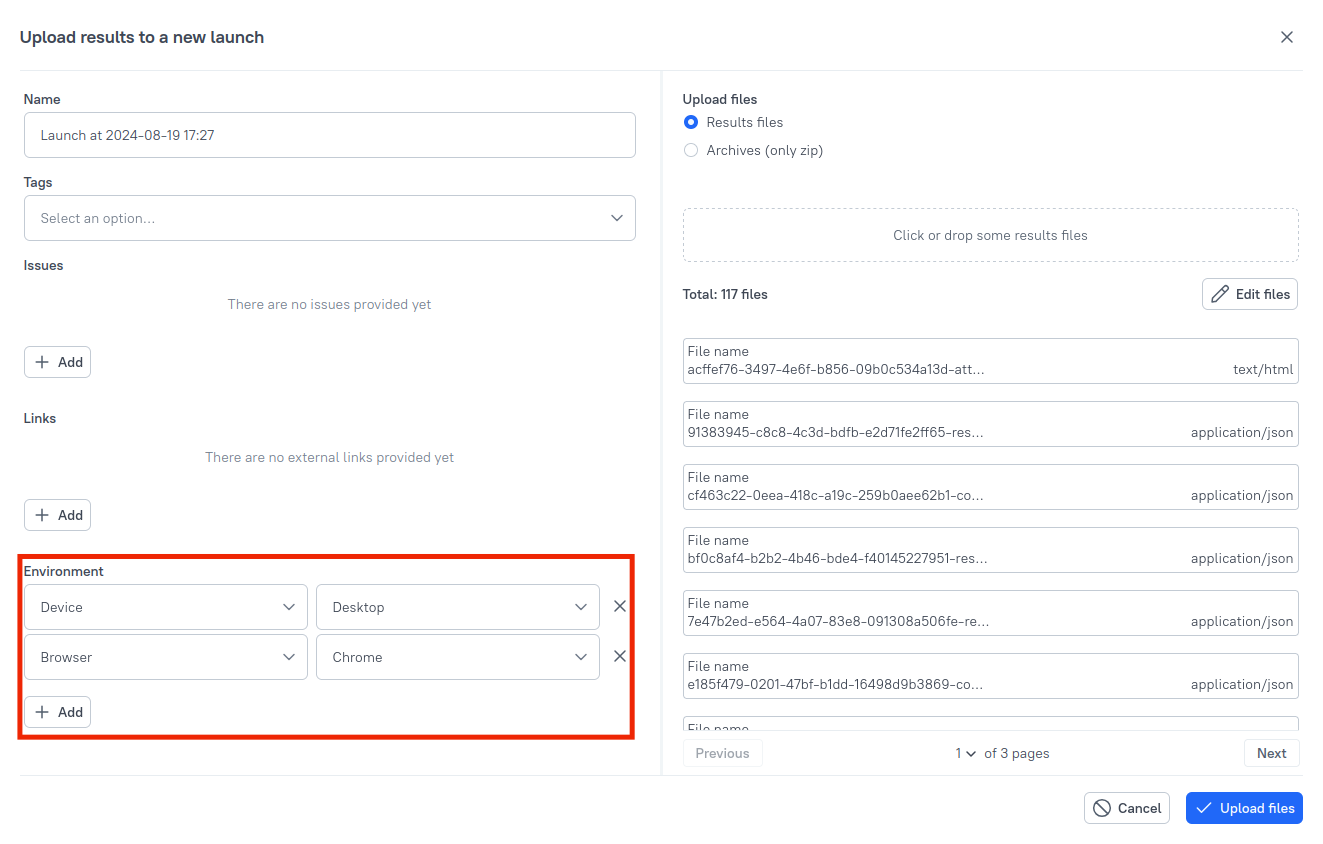
When you upload automated test results to a new or existing launch, you can set the environment variables in the Environment section of the dialog.
These values will be set for all test results that you upload in the current dialog, which are not necessarily all test results in a launch. For example, you may run your tests on multiple machines and individually upload their results into the same launch, each time with a different value for “Host” or some other environment variable.
Set the default variables for a job
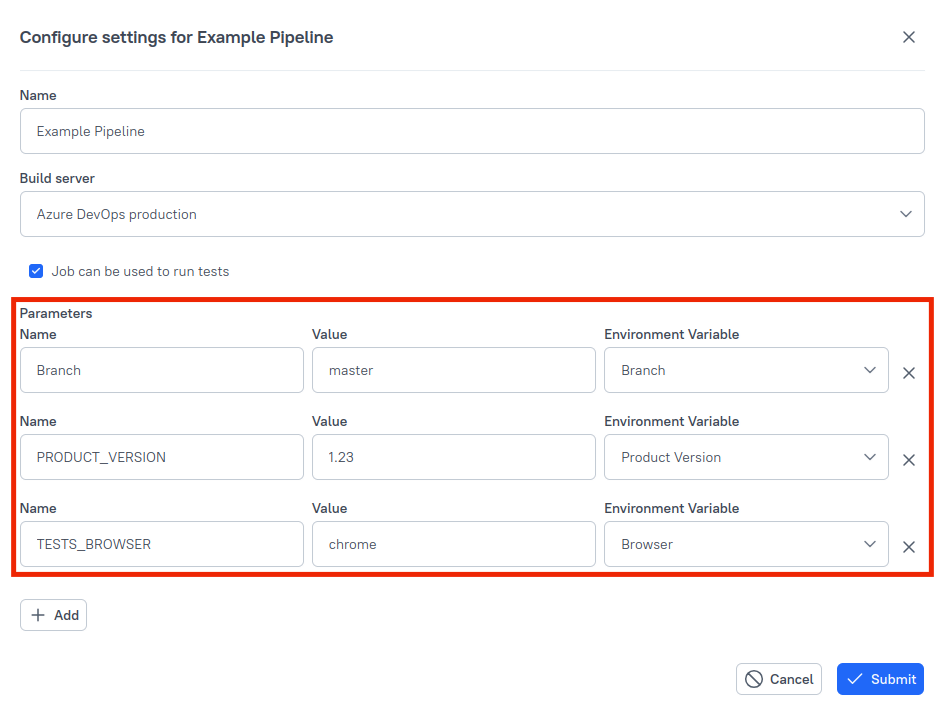
When you configure a job, you can specify the default environment the job will use. Each variable not only has a default value, but also is mapped to an environment variable name from the CI system. When the job is triggered from the CI system, this variable can be used to override the default value.
For launches triggered from Allure TestOps (by clicking Run on a test case, a test plan, or the job itself), overriding the default value is possible, too.
If a launch has one environment, its variables override the job's defaults for every task.
If a launch has two or more environments, Allure TestOps will create the corresponding amount of job runs, and in each job run the defaults will be overridden by a different environment.
Note that some integrations may need to have a special variable called Branch in every job's default environment. Check the instructions in the Integrations with external systems section.
Branch is usually a special case
For many CI integrations, Branch behaves more like pipeline routing context than ordinary test metadata. Some integrations expect a branch-related value in the job defaults so TestOps can trigger the correct pipeline revision from the UI.
Use branch values consistently:
- keep the mapping stable between the job and the CI pipeline;
- avoid mixing dynamic branch-like values into the environment unless they genuinely define a separate execution context;
- refresh the job configuration after pipeline changes that affect available parameters or branch behavior.
How this relates to jobs
Jobs are the bridge between launch environments and CI execution. They define which build server and pipeline are used, which parameters can be overridden from TestOps, and whether the integration works only as CI → TestOps or in both directions.
