
GitHub Actions
GitHub Actions integration connects GitHub workflows with Allure TestOps: uploads test results using allurectl, lets TestOps trigger workflow_dispatch runs, and maps workflow inputs to launch environments.
This page covers GitHub Actions. For issue linking, defect export, or issue creation, see GitHub Issues.
Entities and limitations
One job in Allure TestOps corresponds to one GitHub workflow. One launch corresponds to one GitHub workflow run.
There is no relation to a specific job within a workflow. If a specific job needs to be triggered from TestOps, manage it through the GitHub workflow itself.
Limitations:
- A GitHub-backed job cannot be created manually with the + Job button. The only supported way is to run the workflow from GitHub first and let TestOps create the job automatically from the upload.
- GitHub Enterprise Server cannot use the GitHub Marketplace action to install allurectl. Use the direct download example instead.
- Only personal access tokens are supported for the TestOps → GitHub trigger path.
Before you begin
- Permission to edit the workflow YAML in the repository.
- The URL of the TestOps instance and the numeric TestOps project ID.
- A TestOps API token for the upload path.
- A GitHub personal access token for the TestOps-to-GitHub trigger path.
1. Upload results from GitHub Actions to TestOps
Create the TestOps token
- In Allure TestOps, click your avatar and open API Tokens.
- Click + Token.
- Enter a name for the token, for example
Token for GitHub, and click Create. - Copy the generated token.
Store the token in GitHub
- In GitHub, open the repository and go to Settings → Secrets and variables → Actions.
- Click New repository secret.
- Fill in the fields:
- Name —
ALLURE_TOKEN - Secret — the API token copied from TestOps
- Name —
- Click Add secret.
Update the workflow
Add the allure-framework/setup-allurectl action, set the required environment variables, and wrap the test command with allurectl watch:
name: GitHub integration with TestOps

on:
  push:
    branches: [main]
  workflow_dispatch:

env:
  ALLURE_ENDPOINT: https://testops.example.com
  ALLURE_PROJECT_ID: 1
  ALLURE_RESULTS: build/allure-results

jobs:
  tests:
    runs-on: ubuntu-latest
    steps:
      - uses: actions/checkout@v4
      - name: Install and configure allurectl
        uses: allure-framework/setup-allurectl@v1
        with:
          allure-endpoint: ${{ env.ALLURE_ENDPOINT }}
          allure-project-id: ${{ env.ALLURE_PROJECT_ID }}
          allure-token: ${{ secrets.ALLURE_TOKEN }}
      - name: Run tests
        run: allurectl watch -- ./gradlew clean test
ALLURE_ENDPOINT— TestOps base URL.ALLURE_PROJECT_ID— numeric TestOps project ID.ALLURE_RESULTS— directory where the test framework writes Allure result files.ALLURE_TOKEN— the TestOps API token stored as a GitHub secret.
Direct-download fallback for GitHub Enterprise Server
- name: Download allurectl
  run: |
    curl -fsSL https://github.com/allure-framework/allurectl/releases/latest/download/allurectl_linux_amd64 -o allurectl
    chmod +x allurectl

- name: Run tests with allurectl
  env:
    ALLURE_ENDPOINT: ${{ env.ALLURE_ENDPOINT }}
    ALLURE_PROJECT_ID: ${{ env.ALLURE_PROJECT_ID }}
    ALLURE_RESULTS: build/allure-results
    ALLURE_TOKEN: ${{ secrets.ALLURE_TOKEN }}
  run: ./allurectl watch -- ./gradlew clean test
Use this pattern when the Marketplace action is unavailable or when your runner image already manages the allurectl binary explicitly.
Run and verify the first upload
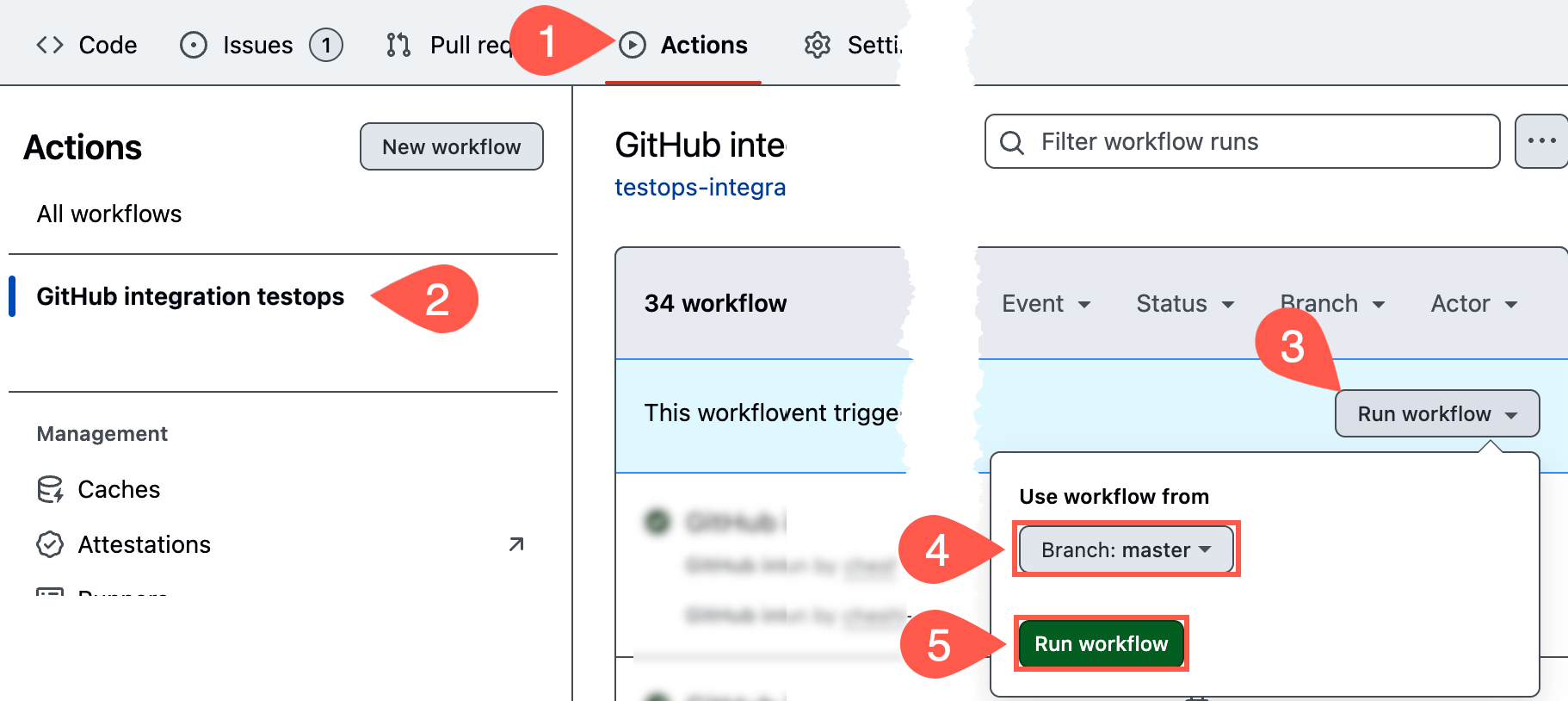
In GitHub, go to Actions, select the workflow, and click Run workflow on the correct branch.
After the run completes, check the job log. Near the end there should be a link to the TestOps launch.
Open the launch in TestOps and confirm test results arrived.
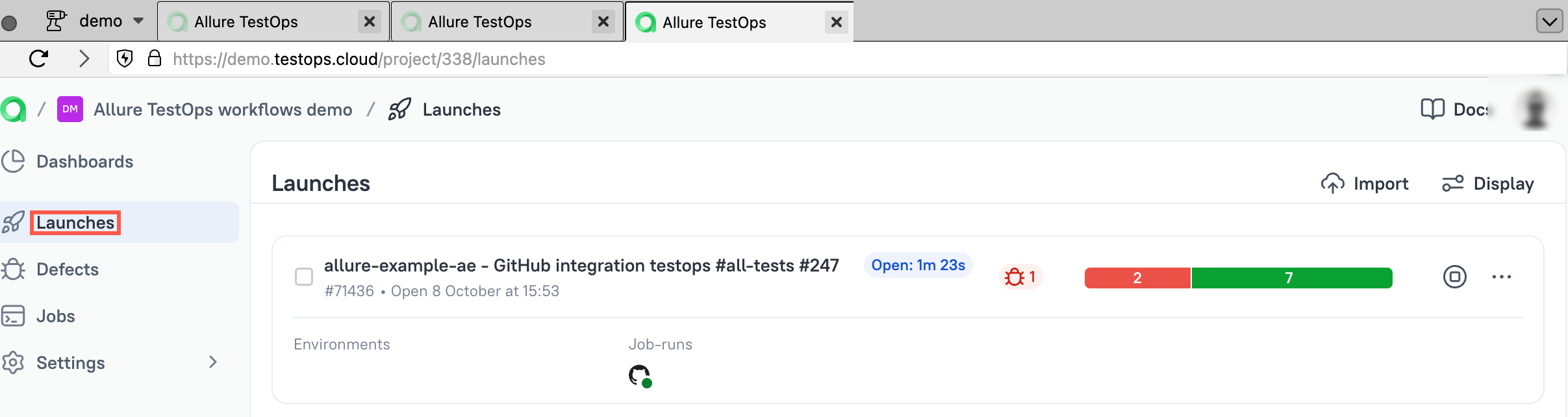
Close the launch in TestOps.

Closing the launch causes TestOps to create and update automated test cases from the uploaded results. The GitHub-backed job is also created automatically at this point.
2. Let TestOps trigger GitHub workflows
Add the global GitHub integration
An instance administrator should:
- Open Administration → Integrations.
- Click + Add integration.
- Select GitHub.
- Fill in the fields:
- Name — a recognizable name, for example
github.com. - Endpoint —
https://github.comfor github.com, or the GitHub Enterprise Server URL. - Endpoint for API calls —
https://api.github.comfor github.com, or<your-ghes-url>/api/v3for GitHub Enterprise Server.
- Name — a recognizable name, for example
- If the GitHub server uses a self-signed certificate, check Disable certificate validation.
- Click Add integration.
Create a GitHub personal access token
Add the GitHub integration to the project
- In TestOps, open the target project and go to Settings → Integrations.
- Under Available integrations, find the GitHub integration and click Add integration.
- Under Secret, paste the GitHub personal access token.
- Click Test connection. A "Connection established" message confirms the token is correct.
- Click Add integration.
Update the workflow for TestOps-triggered runs
GitHub requires workflow_dispatch inputs. TestOps-triggered runs also need two service inputs named ALLURE_JOB_RUN_ID and ALLURE_USERNAME — declare them as required: false:
on:
  workflow_dispatch:
    inputs:
      ALLURE_JOB_RUN_ID:
        description: "Service parameter. Leave blank."
        required: false
      ALLURE_USERNAME:
        description: "Service parameter. Leave blank."
        required: false
      TESTS_BROWSER:
        description: "Browser for the test run"
        required: false
        default: chrome

env:
  ALLURE_RESULTS: build/allure-results
  ALLURE_JOB_RUN_ID: ${{ github.event.inputs.ALLURE_JOB_RUN_ID }}
  ALLURE_USERNAME: ${{ github.event.inputs.ALLURE_USERNAME }}
  TESTS_BROWSER: ${{ github.event.inputs.TESTS_BROWSER }}
When ALLURE_JOB_RUN_ID is present and non-empty, allurectl uploads into the launch created by TestOps. When it is absent or empty (a manual run from GitHub), allurectl creates a new standalone launch.
If ALLURE_JOB_RUN_ID or ALLURE_USERNAME are missing from workflow_dispatch, GitHub returns error 422 when TestOps tries to trigger the workflow.
Configure the workflow-backed job in TestOps
Open Jobs in the TestOps project.
Click
⋯next to the job created from the first upload and select Configure.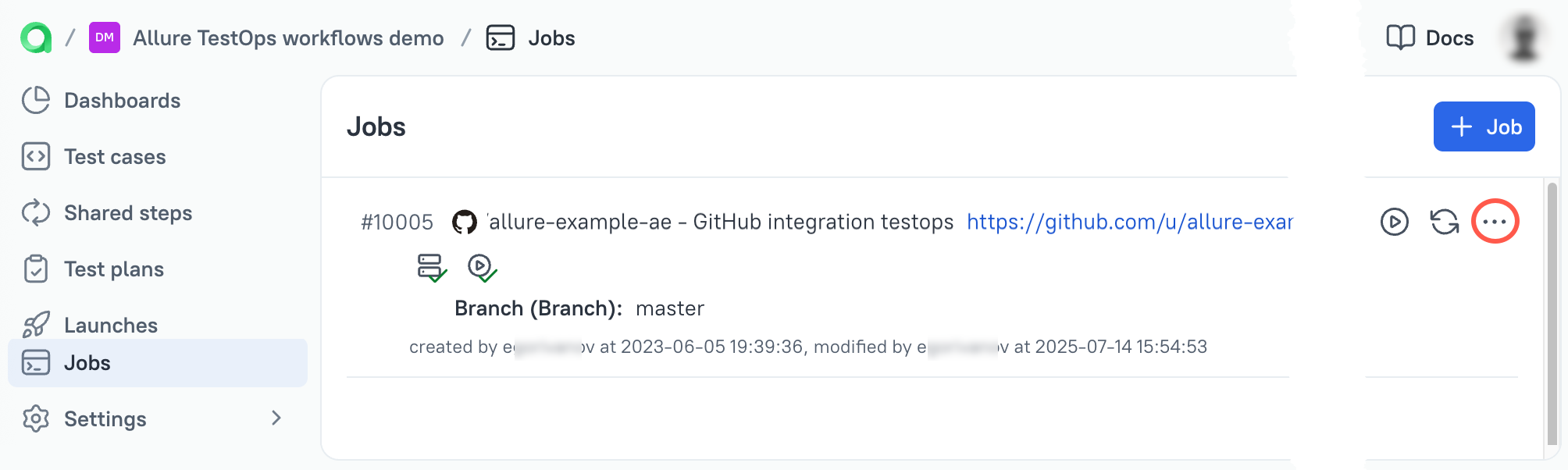
Fill in the fields:
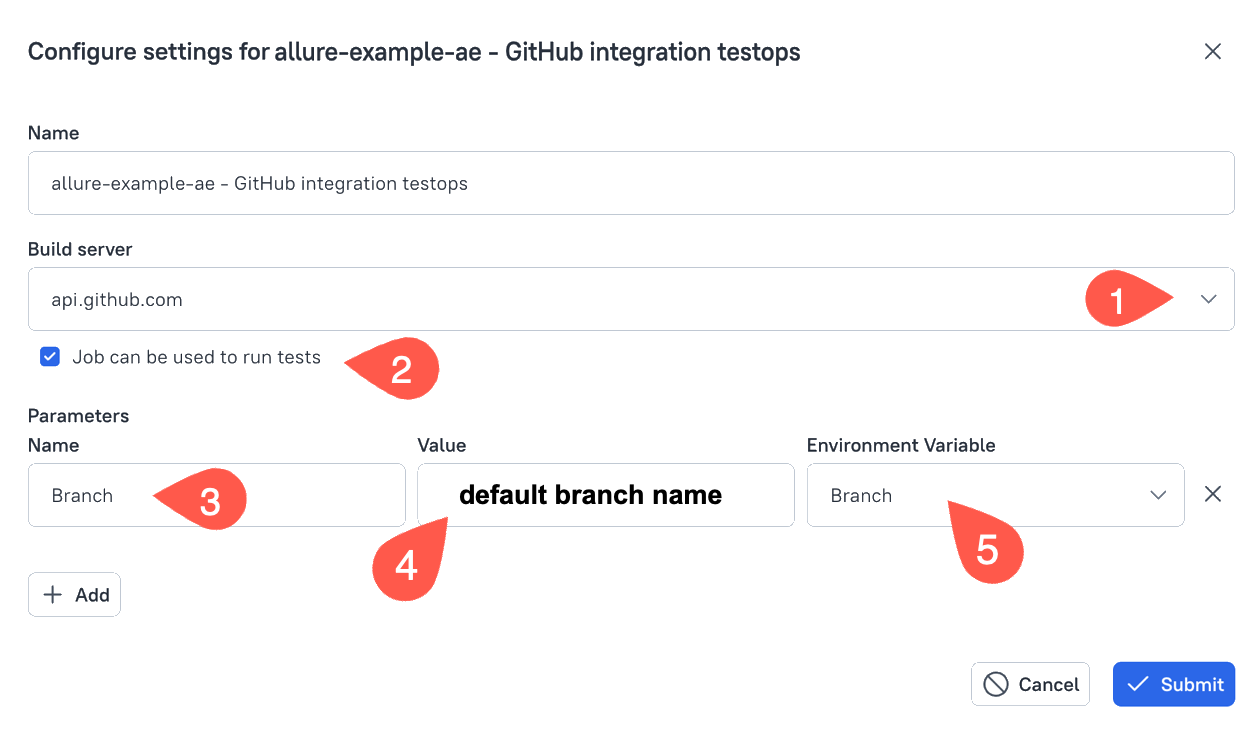
- Build server — the global GitHub integration added by the administrator.
- Job can be used to run tests — enable to allow triggering from TestOps.
- Parameters: add Branch as the first parameter, set its default value to the branch that should run when no override is provided, and link it to the global Branch environment variable.
Click Submit.
After saving, click Update job from the build server.

This step syncs the TestOps job with the current
workflow_dispatchcontract in GitHub. It is often skipped and is the most common cause of error 422.
Repeat this sync step whenever you change the workflow_dispatch inputs in the workflow file.
3. Pass parameters and environment values
GitHub uses workflow_dispatch.inputs to receive parameters from TestOps. All custom inputs must be declared in the workflow, passed to the workflow environment via ${{ github.event.inputs.<name> }}, and mapped in TestOps.
Declare inputs in the workflow
Add parameters to workflow_dispatch.inputs and expose them in env:
  workflow_dispatch:
    inputs:
      ALLURE_JOB_RUN_ID:
        description: "Service parameter. Leave blank."
        required: false
      ALLURE_USERNAME:
        description: "Service parameter. Leave blank."
        required: false
      TESTS_BROWSER:
        description: "Browser to be used in tests"
        required: true
        default: chrome

env:
  ALLURE_RESULTS: build/allure-results
  ALLURE_JOB_RUN_ID: ${{ github.event.inputs.ALLURE_JOB_RUN_ID }}
  ALLURE_USERNAME: ${{ github.event.inputs.ALLURE_USERNAME }}
  TESTS_BROWSER: ${{ github.event.inputs.TESTS_BROWSER }}
Add global environment names
An instance administrator should:
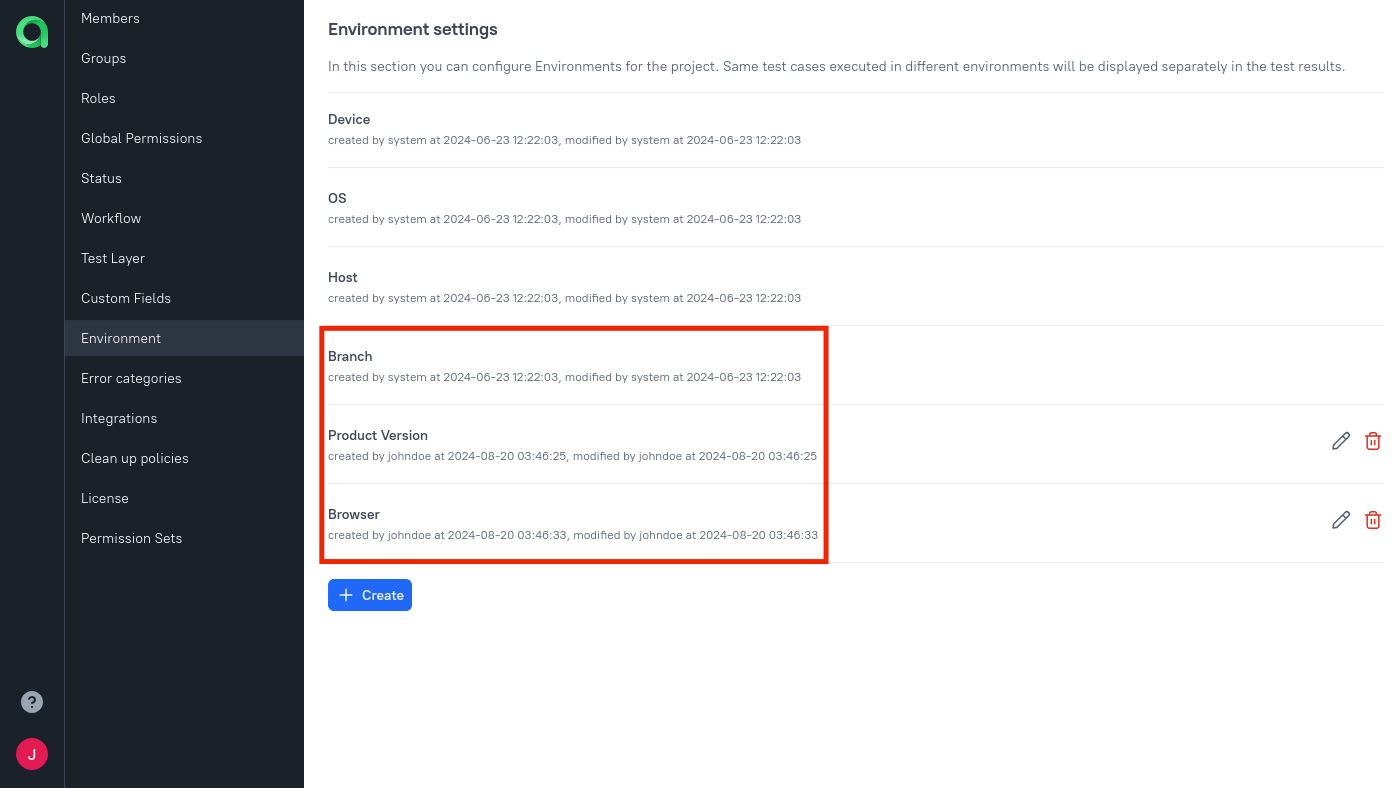
Open Administration → Environment.
For each parameter, click + Create, enter the name, and click Submit.
Map parameters in the project
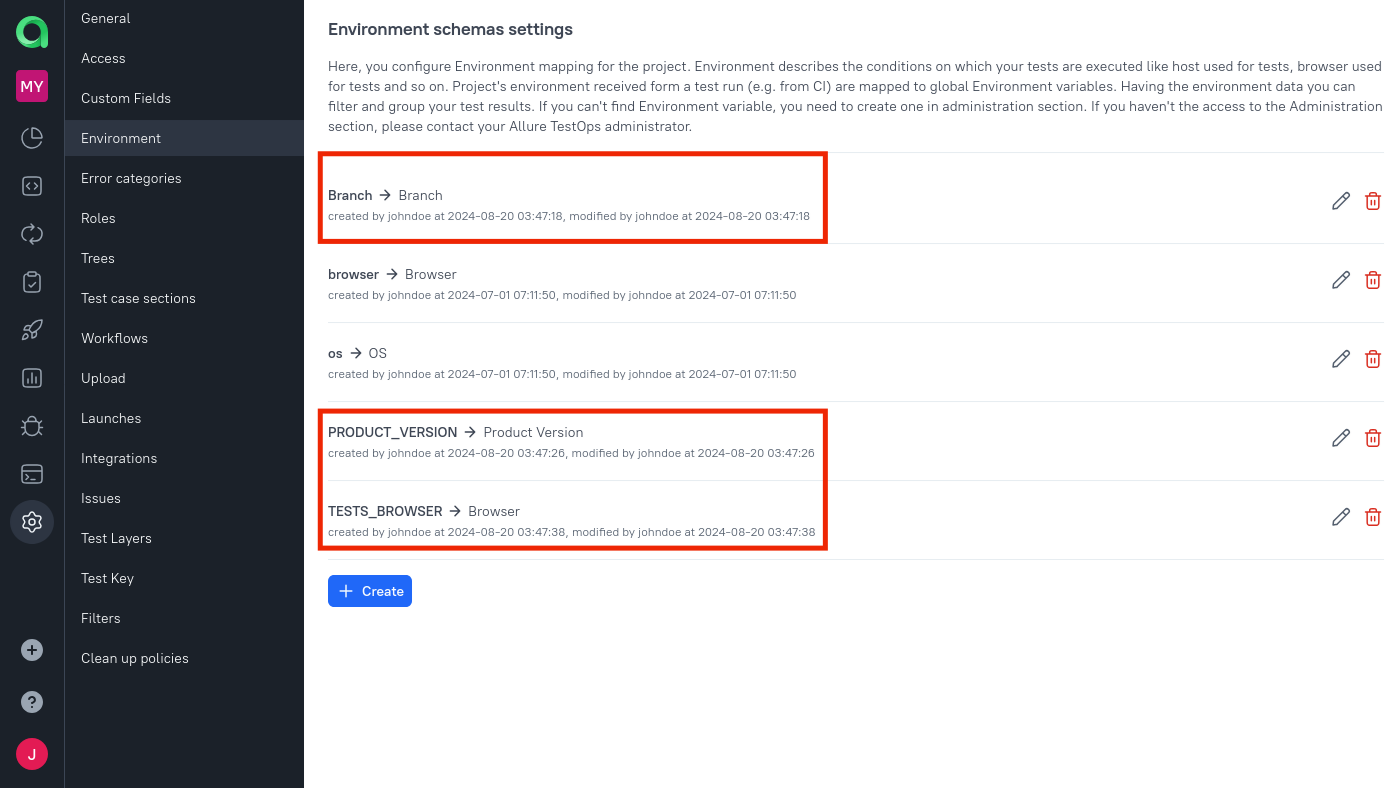
In the project, open Settings → Environment.
For each parameter, click + Create (or the edit icon if it already exists):
- Mapping key — the workflow input name, for example
TESTS_BROWSER. - Environment variable — the global parameter name created by the administrator.
- Mapping key — the workflow input name, for example
Click Submit.
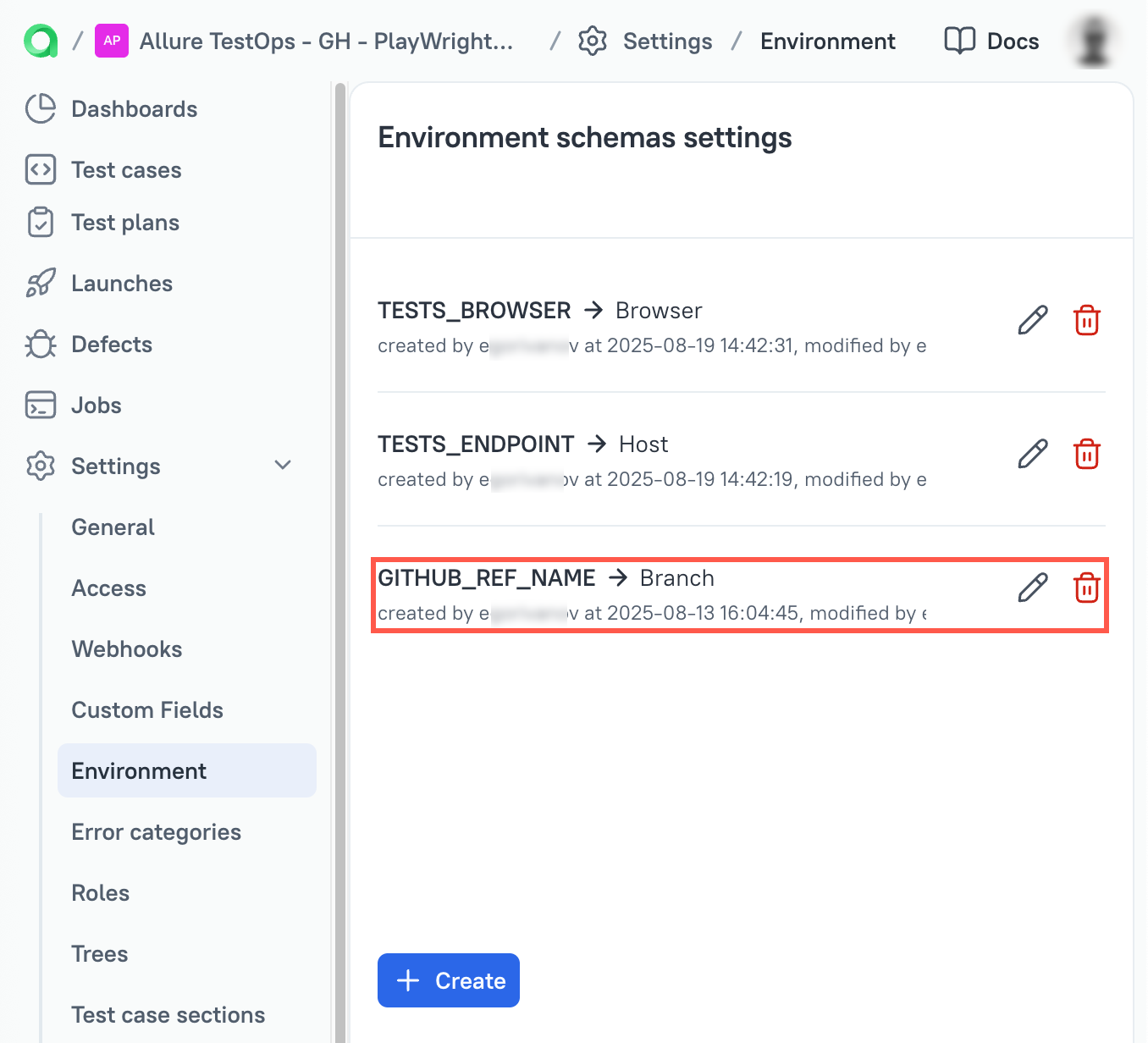
GitHub also exposes default environment variables that allurectl forwards to TestOps. Use GITHUB_REF_NAME as the mapping key to capture the branch name automatically without declaring it as a workflow_dispatch input:
Add parameters to the job
Open Jobs, click
⋯next to the job, and select Configure.In the Parameters section, click Add for each parameter:
- Name — the workflow input name (matches the mapping key).
- Value — the default value.
- Environment Variable — the global parameter name.
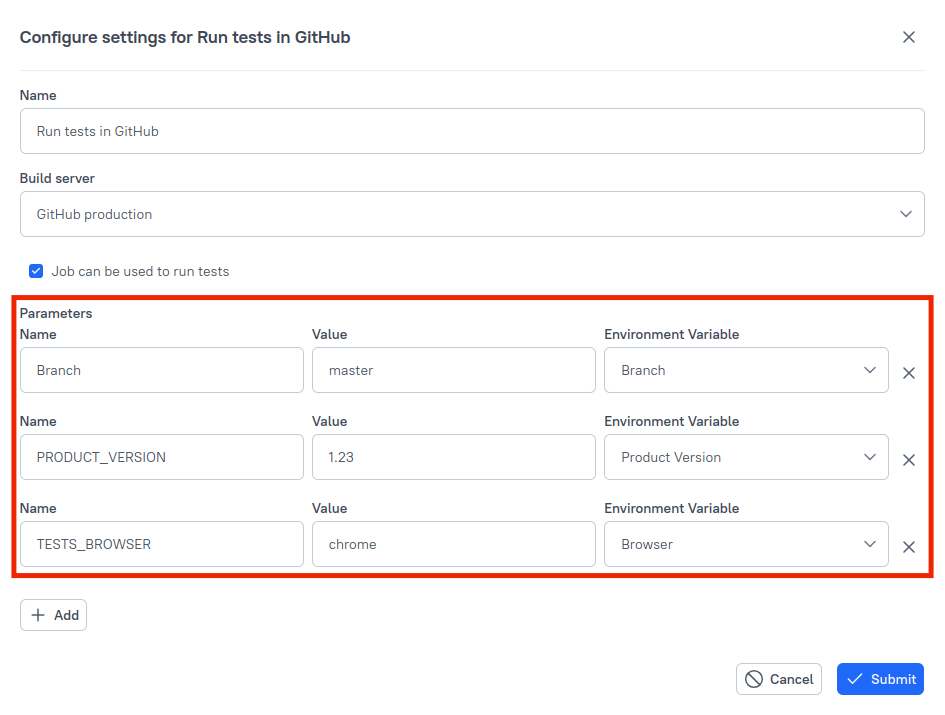
Click Submit.
Every parameter set in the TestOps job must exist as an input in
workflow_dispatch. If TestOps sends a parameter that is not declared in the workflow, GitHub returns error 422.
Branch is a special parameter: it is passed to GitHub as the ref parameter of the API call that triggers workflow_dispatch, not as a workflow input. It does not need to appear in workflow_dispatch.inputs.
Examples
Using the GitHub Action
name: run-and-upload-to-testops

on:
  workflow_dispatch:
    inputs:
      TESTS_BROWSER:
        description: "Browser to be used in tests"
        required: true
        default: chrome
      ALLURE_JOB_RUN_ID:
        description: "Allure TestOps service parameter. Leave blank."
        required: false
      ALLURE_USERNAME:
        description: "Allure TestOps service parameter. Leave blank."
        required: false

env:
  ALLURE_RESULTS: allure-results
  ALLURE_JOB_RUN_ID: ${{ github.event.inputs.ALLURE_JOB_RUN_ID }}

jobs:
  all-tests:
    runs-on: ubuntu-latest
    steps:
      - uses: actions/checkout@v4
      - uses: actions/setup-python@v4
        with:
          python-version: "3.11"
      - name: Install test dependencies
        run: pip install allure-pytest pytest
      - name: Install and configure allurectl
        uses: allure-framework/setup-allurectl@v1
        with:
          allure-endpoint: https://testops.example.com
          allure-token: ${{ secrets.ALLURE_TOKEN }}
          allure-project-id: 1
      - name: Run tests
        run: allurectl watch -- pytest ./test --alluredir=${ALLURE_RESULTS}
        env:
          TESTS_BROWSER: ${{ github.event.inputs.TESTS_BROWSER }}
GitHub Enterprise example: direct download
Use this when the Marketplace action is not available.
The allure-job-uid step is mandatory for TestOps to be able to trigger and re-run the workflow. Without it, the workflow cannot be linked to the TestOps job.
name: pytest tests with allure framework

on:
  workflow_dispatch:
    inputs:
      TESTS_BROWSER:
        description: "Browser to be used in tests"
        required: true
        default: chrome
      ALLURE_JOB_RUN_ID:
        description: "Allure TestOps service parameter. Leave blank."
        required: false
      ALLURE_USERNAME:
        description: "Allure TestOps service parameter. Leave blank."
        required: false

env:
  ALLURE_ENDPOINT: ${{ secrets.ALLURE_ENDPOINT }}
  ALLURE_TOKEN: ${{ secrets.ALLURE_TOKEN }}
  ALLURE_PROJECT_ID: ${{ secrets.ALLURE_PROJECT_ID }}
  ALLURE_RESULTS: allure-results
  ALLURE_JOB_RUN_ID: ${{ github.event.inputs.ALLURE_JOB_RUN_ID }}

jobs:
  tests:
    runs-on: ubuntu-latest
    steps:
      - uses: actions/checkout@v4
      - uses: actions/setup-python@v4
        with:
          python-version: "3.11"
      - uses: actions/github-script@v4
        id: allure-job-uid
        with:
          result-encoding: string
          script: |
            const result = await github.actions.getWorkflowRun({
              owner: context.repo.owner,
              repo: context.repo.repo,
              run_id: context.runId,
            });
            return `${context.repo.owner}/${context.repo.repo}/actions/workflows/${result.data.workflow_id}`
      - name: Download allurectl
        run: |
          wget https://github.com/allure-framework/allurectl/releases/latest/download/allurectl_linux_amd64 -O ./allurectl
          chmod +x ./allurectl
      - name: Install test dependencies
        run: pip install allure-pytest pytest
      - name: Run tests
        env:
          ALLURE_JOB_UID: ${{ steps.allure-job-uid.outputs.result }}
          TESTS_BROWSER: ${{ github.event.inputs.TESTS_BROWSER }}
        run: ./allurectl watch -- pytest --alluredir=${ALLURE_RESULTS}
Troubleshooting
GitHub returns error 422 when TestOps triggers the workflow
Error 422 means the parameters TestOps is sending do not match the inputs declared in workflow_dispatch.
Check:
workflow_dispatchis present in the workflow'son:block;ALLURE_JOB_RUN_IDandALLURE_USERNAMEare declared asrequired: falseinputs;- every parameter set in the TestOps job exists as an input in
workflow_dispatch; - you clicked Update job from the build server after the last workflow change.
Branch is a special case: it is not listed in workflow_dispatch.inputs but must be set in the TestOps job configuration. Its value is passed as the ref parameter of the GitHub API call, not as a workflow input.
The workflow uploads into a new launch instead of the TestOps job run
ALLURE_JOB_RUN_ID is not reaching allurectl. Confirm that:
ALLURE_JOB_RUN_ID: ${{ github.event.inputs.ALLURE_JOB_RUN_ID }}is in the workflowenvblock;- the workflow runs
allurectl watch; - the run was triggered from TestOps, not manually from GitHub.
