
Zephyr Scale
Zephyr Scale export sends test cases and launch data from Allure TestOps into Zephyr Scale. The export is one-way from TestOps into Zephyr Scale. It covers:
- exporting test cases from TestOps into Zephyr Scale;
- exporting launch data for the selected test-case set;
- supporting both Zephyr Scale for Jira Data Center and Zephyr Scale Cloud;
- optional test-key mapping and status mapping.
If your real goal is to keep an external Zephyr test key on a test case, use Test keys and Allure IDs.
The Zephyr Scale export path depends on two credential sets: the Jira-side identity and the Zephyr Scale access token. Keep both with the same account when you rotate credentials.
Before you begin
- The Zephyr deployment type — Data Center or Cloud.
- The Jira username or email used for the destination project.
- A Jira API token.
- A Zephyr Scale access token.
- The AQL filters that define which test cases and launches should be exported.
1. Add the global Zephyr Scale integration
Allure TestOps provides two integration types for Zephyr Scale:
2. Create the required credentials
Jira API token
- Go to Account settings → Security → API tokens, or open https://id.atlassian.com/manage-profile/security/api-tokens.
- Click Create API token.
- Enter a name to identify the token, for example
Token for Allure TestOps. - Click Create, then click Copy to clipboard. Save the token in a secure location.
Zephyr Scale access token
- Click your Jira profile icon and select Zephyr Scale API Access Tokens, or go to
https://<yourcompany>.atlassian.net/plugins/servlet/ac/com.kanoah.test-manager/api-access-tokens. - Click Create access token.
- Click Copy and save the token in a secure location.
3. Enable Zephyr Scale in the TestOps project
In TestOps, open the target project.
Go to Settings → Integrations.
Find the Zephyr Scale integration and click Add integration.
Fill in the fields:
- Username — the Jira account email used to create the API tokens.
- Jira API token — the token from step 2.
- Zephyr Scale access token — the token from step 2.
Click Add integration.
4. Add test-key mapping when you need identity linking
If your automation already uses Zephyr Scale test keys and TestOps should store that external identity:
- In the TestOps project, go to Settings → Test key.
- Enter the label name that carries the external test key.
- Select the Zephyr Scale integration as the test-management system.
- Click Submit.
Use this only for external identity linking. The outbound export is configured separately in TMS Sync.
5. Create the TMS Sync export configuration
In the TestOps project, go to Settings → Integrations and open the Zephyr Scale integration.
Go to the TMS Sync tab and click Create.
In the Project list, select the destination Zephyr Scale project.
Fill in the export scope:
Test Case AQL — an AQL expression for the test cases to export. Leave empty to export all test cases.
An empty Test Case AQL exports all test cases from the source project.
Launches AQL — an AQL expression for the launches to export. Leave empty to export all launches. Select Disable Launches sync to skip launch export entirely.
An empty Launches AQL exports all launches for the selected test-case scope.
Disable Test Case create — enable after the initial export if the destination should only receive updates for already exported cases.
Disable export — enable to pause the configuration without deleting it.
Add status mapping if exported test cases should preserve workflow status (see Map test case statuses below).
Click Submit.
The TMS sync is automatically disabled if the credentials are invalid, revoked, or have insufficient access. To restore sync, update the project integration and re-enable the export.
Map test case statuses
Allure TestOps and Zephyr Scale may use different status names. Each mapping rule links a source status in TestOps to a target status in Zephyr Scale.
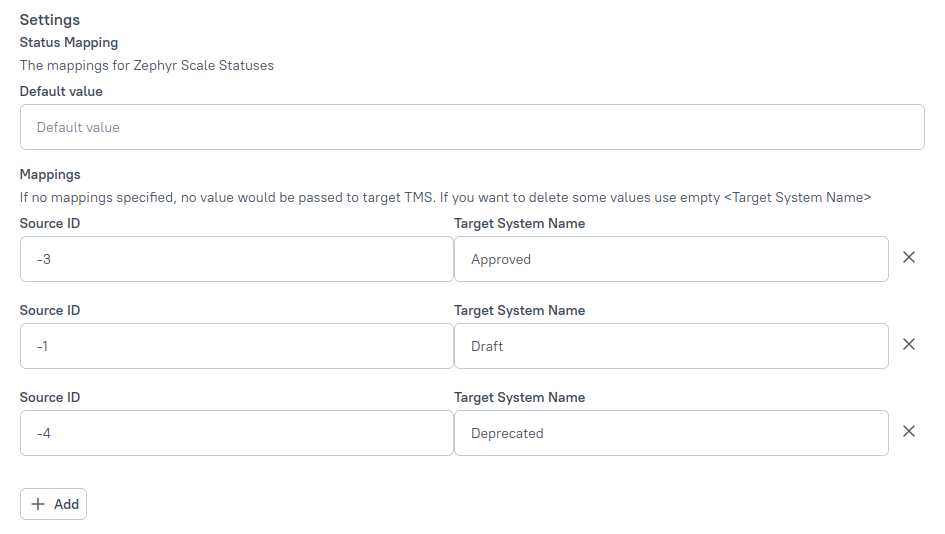
To configure mapping, open the TMS Sync configuration and click Edit:
- Default value — the Zephyr Scale status to use when no mapping row applies.
- Add — creates a mapping row with Source ID (TestOps status ID) and Target (Zephyr Scale status). If the target is left empty, the status is dropped on export.
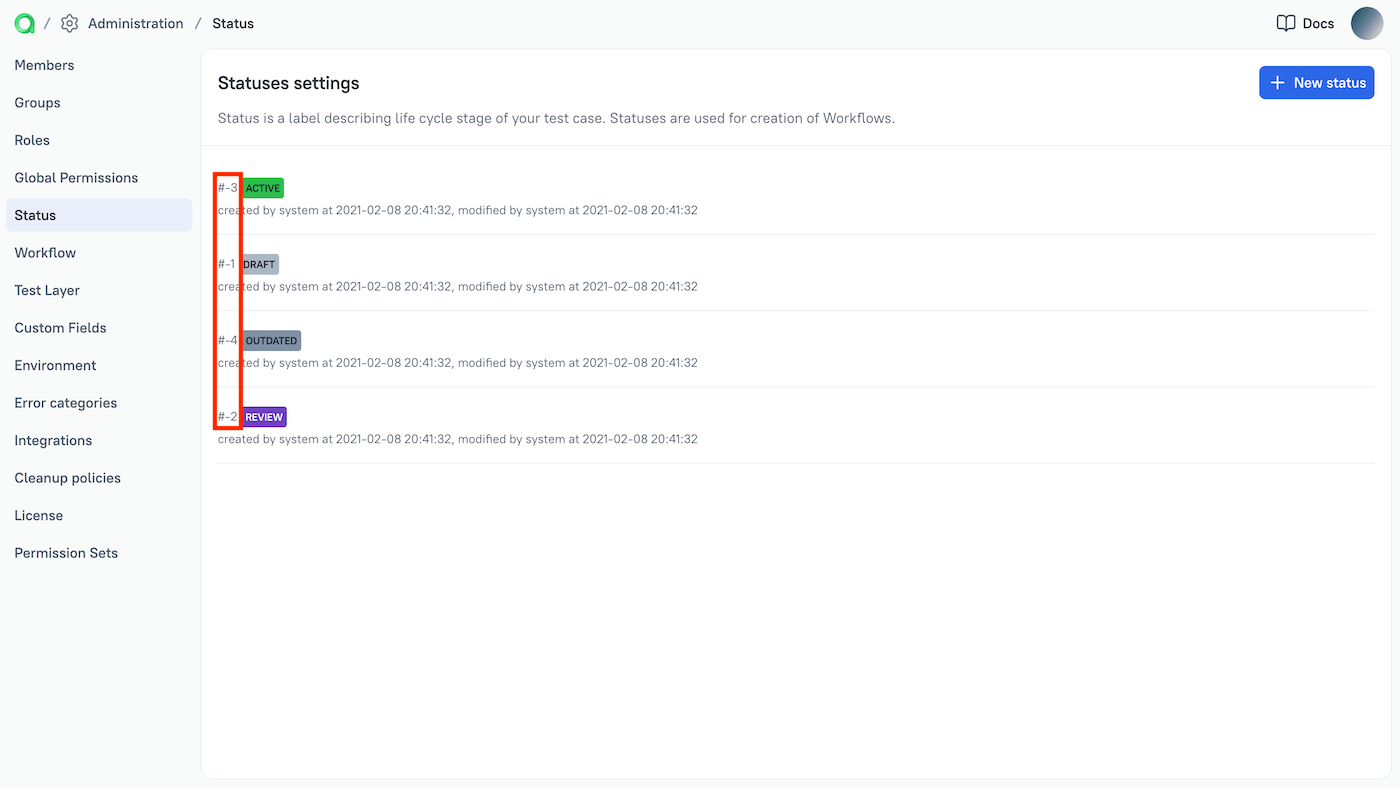
To find TestOps status IDs, go to Administration → Status. The ID is shown to the left of the status name.
Click Submit to save the mapping.
Verify the integration
- Run the export configuration.
- Open the destination Zephyr Scale project and confirm that the expected test cases appear.
- If launch export is enabled, confirm that the expected execution data arrives for the exported test-case set.
- If test-key mapping is enabled, confirm that the expected external key is visible on the TestOps test case.
Troubleshooting
The project integration saves, but export cannot start
Recheck both credential sets. Zephyr Scale export depends on the Jira API token and the Zephyr Scale access token together — both must be valid and belong to the same Jira account.
The export configuration disables itself
One of the project credentials is invalid, revoked, or no longer has sufficient access to the destination project. Update the project integration and re-enable the export.
Related pages
- Test management sync and export for the broader exchange model.
- Test keys and Allure IDs for external identity linking.
- Migrating from other solutions for one-time migration workflows.
