
Compare launches
By comparing two or more launches, you can see how the project quality changes over time. It is a convenient way to visualize which tests are stable and which tests change their status between launches.
Use comparison when the main question is change:
- what became better or worse between runs;
- which tests are new, fixed, or missing;
- whether a release candidate differs from the previous reference point.
Selecting launches for comparison
To compare launches:
- Go to Launches.
- Select launches from the list by selecting the checkboxes next to them.
- At the bottom of the screen, click Compare.
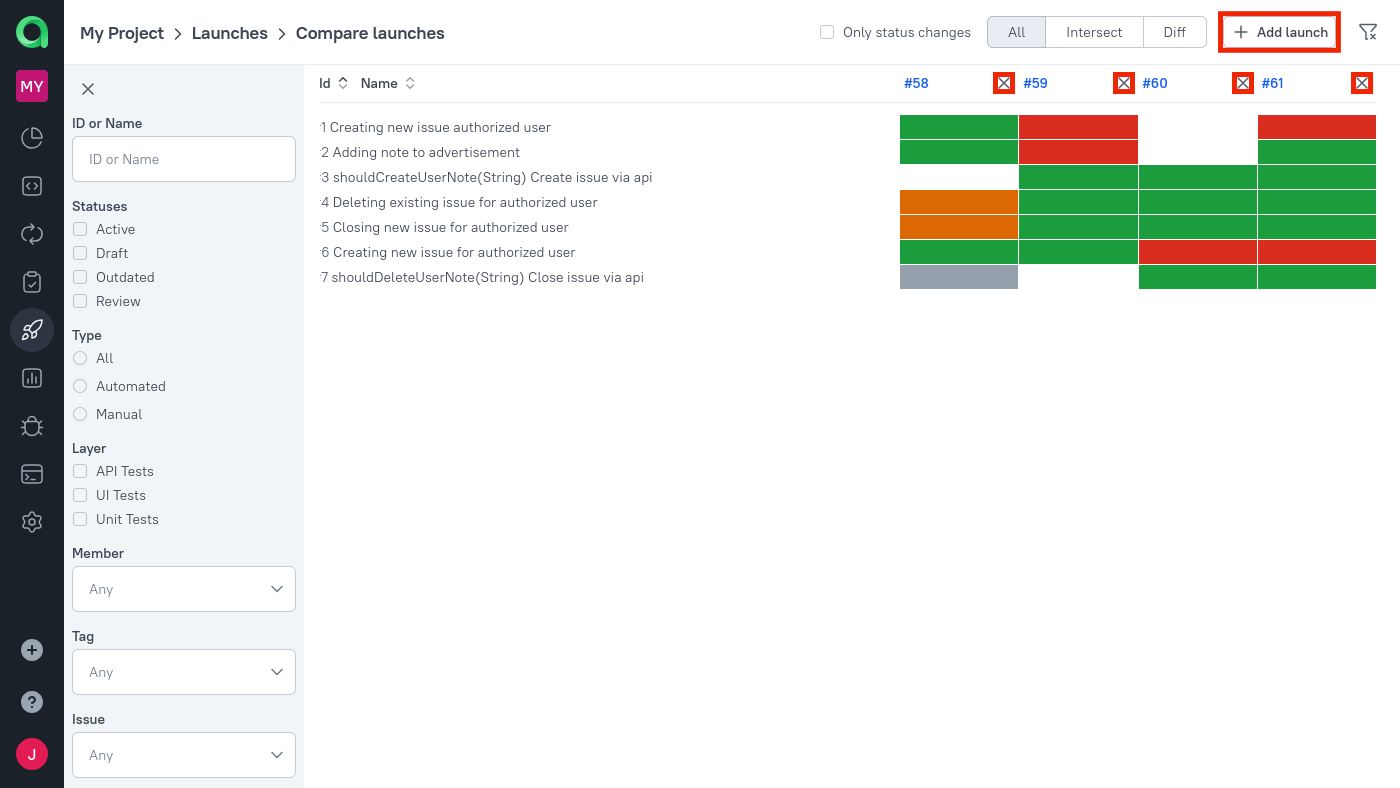
The comparison page will show one table column for each selected launch. Each cell represents a status of a test result or lack thereof. For example, a passed test is represented by a green cell, a failed test by a red cell, and a missing test result by a white cell.
It is possible to edit the list of launches you are comparing:
- To add a launch to the comparison, click + Add launch in the top right corner.
- To remove a launch from the comparison, click the cross icon next to its ID.
Comparison modes
The comparison page supports three practical viewing modes.
All
Use All when you want the broadest matrix and need to see everything that participated in any of the selected launches.
Intersect
Use Intersect when you want to compare only the tests that were present in every selected launch.
This is the best mode when the question is:
- "How did the shared stable core behave?"
- "Did the same tests improve or regress?"
Diff
Use Diff when you want to emphasize scope differences: tests that were absent in one or more launches.
This is useful when the question is:
- "Which tests are missing from one run?"
- "What new scope appeared in the candidate launch?"
Filtering tests in a comparison
There are multiple ways to narrow down the list of tests displayed on the comparison page.
- Check the Only status changes checkbox to see only the tests that changes their status at least once across the compared launches.
- Select the Intersect mode to see the tests that were present in all compared launches, or the Diff mode to see the ones that were absent in one or more launches.
- Click the Open filters icon in the top right corner to use more specific filters based on the tests' statuses, owners, custom fields, etc. Click the Close filters icon to reset and hide these filters.
Only status changes
Turn on Only status changes when you want the comparison to behave like a change detector instead of a full matrix.
This is especially useful when:
- the compared launches are large;
- the unchanged majority would only add noise;
- the real question is which tests changed outcome at least once.
When comparison is better than history or dashboards
Use Compare launches when you already know which launches should be compared and need a direct side-by-side answer.
Use History when the question is about one logical test across time.
Use Dashboards when the question is broader, recurring, or trend-oriented at project level.
Next steps
- Launches to choose the source launches.
- Dashboards for recurring project-level views.
- Analysis for other cross-run analysis paths.
