
How to automate a manual test?
A manual test case can be turned into an automated one without creating a duplicate. The key is to link the new automated test to the existing TestOps test case instead of letting the upload create a separate asset.
This workflow is only for the case where an existing manual test case is being replaced by automation. If you are working with automated tests only, go to creating automated test cases.
Concept
The linking mechanism is the Allure ID of the existing manual test case.
By adding that Allure ID to the automated test code, you tell Allure TestOps that the uploaded automated result belongs to the already existing test case.
When to use this workflow
Use this workflow when:
- the manual test case already exists and should remain the same test asset;
- the team is replacing manual execution with automation;
- you want to preserve the existing test case identity, links, history direction, and manually maintained fields.
How to do it
1. Get the Allure ID of the existing manual test case
To tell Allure TestOps that a certain manual test is to be replaced by automation, you need the Allure ID of that manual test case.
Allure ID is a unique identifier of a test case in the Allure TestOps database. It is assigned automatically when the test case is created.
You can find the Allure ID in the UI of Allure TestOps as shown below.
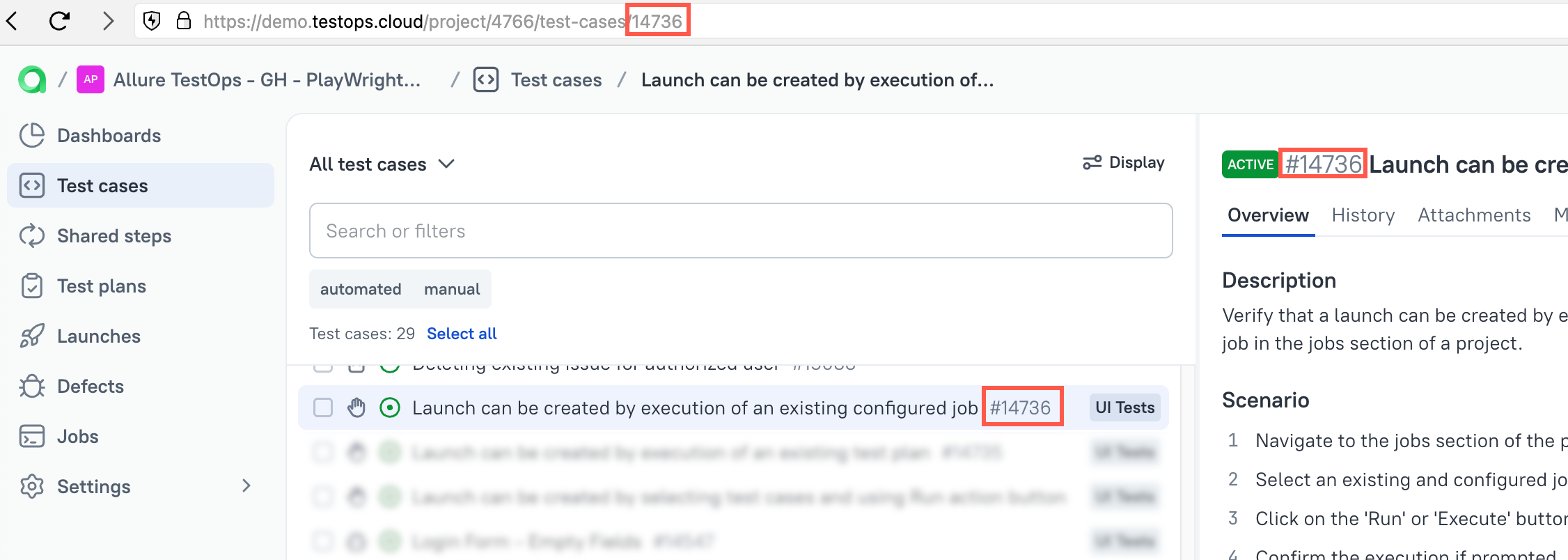
For a selected test case, there are three common places where the Allure ID can be found:
- The web-page address field of your browser
- The id substring in the test cases tree
- The AllureId attribute in the test case form located before the test case name.
2. Add that Allure ID to the automated test code
The integration with Allure Framework with testing frameworks allows passing the corresponding Allure ID into the automated test code.
The exact syntax depends on the framework, but the idea is always the same: the automated test must emit the existing Allure ID from TestOps.
Examples
Here are three examples for the most popular integrations with automated test frameworks.
3. Run the automated test and upload the results
After the Allure ID has been added to the code:
- Run the automated test.
- Upload the results to Allure TestOps: drag and drop the result files locally into a launch, or send them from CI/CD.
- Close the launch so Allure TestOps processes the uploaded results.
If the Allure ID was provided correctly, the existing manual test case will be updated by the automated result instead of a new test case being created.
4. Check that the Allure ID was really included in the result
How do you verify that the Allure ID was actually passed to the result file?
The metadata of automated tests is stored by Allure Framework in the test result file under Labels.
Integrated frameworks usually emit either AS_ID or ALLURE_ID in that labels section.
Example
Caveats
- You must use the Allure ID of an existing test case. A random or non-existent ID will not link the automation correctly.
- If some fields of the old manual case should stay curated in the UI, configure Metadata update settings before the automated launch updates the case.
- If you are not replacing an existing manual case and only need stable automated identity, see Test keys and Allure IDs.
Next steps
- Test keys and Allure IDs for the identifier model.
- Metadata update settings if some manual fields must stay UI-managed.
- Run automated tests for the broader automation workflow.
