
Label your tests
Allure adapters can attach arbitrary key-value pairs — labels — to each test result. Allure TestOps reads these labels on upload and uses them to populate test case attributes: custom fields, layers, members, issues, and tags.
Adding labels to your tests is how you turn raw pass/fail results into structured, filterable, and searchable test documentation — without touching Allure TestOps directly.
How labels flow from code to Allure TestOps
The example below uses Java. Other languages and frameworks work the same way: the adapter converts annotations or API calls into a JSON result file, and Allure TestOps reads that file on upload.
@Feature("Regions")
@Story("Main page in a region")
@Tags({@Tag("web"), @Tag("regress"), @Tag("smoke")})
@ParameterizedTest(name = "{displayName} in region `{0}`")
@MethodSource("regions")
public void addToFavorites(final String city) {
    step("Open site for a region: " + city);
    step("Check that region is: " + city);
}
The adapter generates a result file for each test run. The labels section of that file looks like this:
{
  "labels": [
    { "name": "feature",  "value": "Regions" },
    { "name": "story",    "value": "Main page in a region" },
    { "name": "tag",      "value": "web" },
    { "name": "tag",      "value": "regress" },
    { "name": "tag",      "value": "smoke" }
  ]
}
When Allure TestOps receives this file, it maps each label to the corresponding attribute. feature goes to the Feature custom field, story to Story, and tag entries become test case tags.
Standard labels like epic, feature, story, suite, tag, layer, and owner are recognized out of the box — no configuration needed. See the full list of standard labels.
Examples by attribute type
Each attribute type in Allure TestOps has its own mapping mechanism. The examples below show the complete flow for each one.
Custom field
Custom fields represent structured dimensions like Epic, Feature, Story, Component, Microservice, etc. The system fields (Epic, Feature, Story, Suite) are mapped by default. For custom ones, you need to declare the field and create a mapping.
Example: add a Microservice label with value Report.
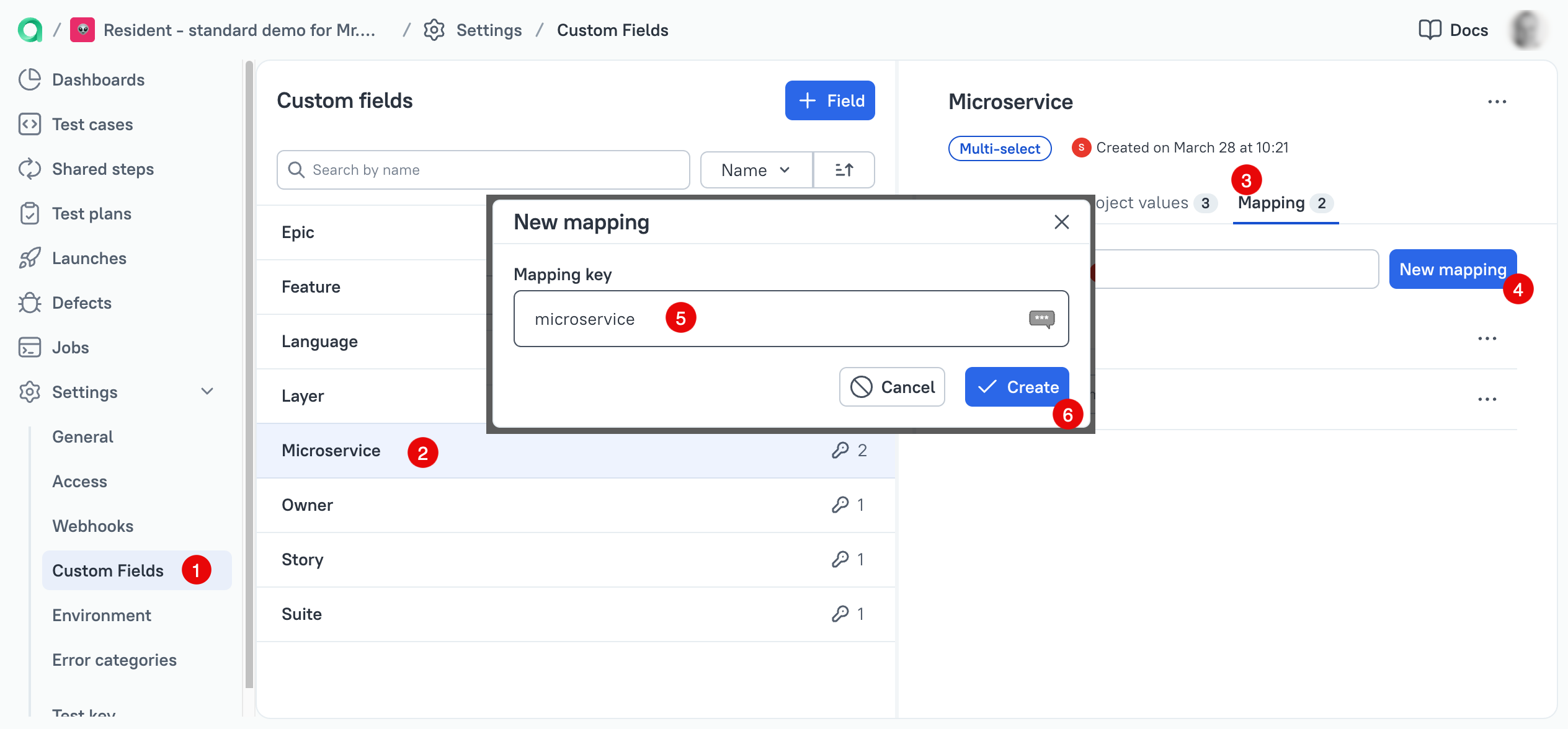
- Go to Administration → Custom fields and create a field named Microservice.
- Add
allure_label["microservice"] = "Report"to your test. - In the project, go to Settings → Custom fields, click + Field and select Microservice.
- On the right side, switch to the Mapping tab and click New mapping.
- Enter the key
microserviceand click Create. - Upload a test result. The Microservice field should appear in the test case with value Report.
For the full custom fields reference, see Custom fields.
Test layer
Test layers classify tests by technology or testing type — UI, API, Selenium, integration, etc. A test case belongs to one layer at a time.
Example: mark tests as Selenium layer.
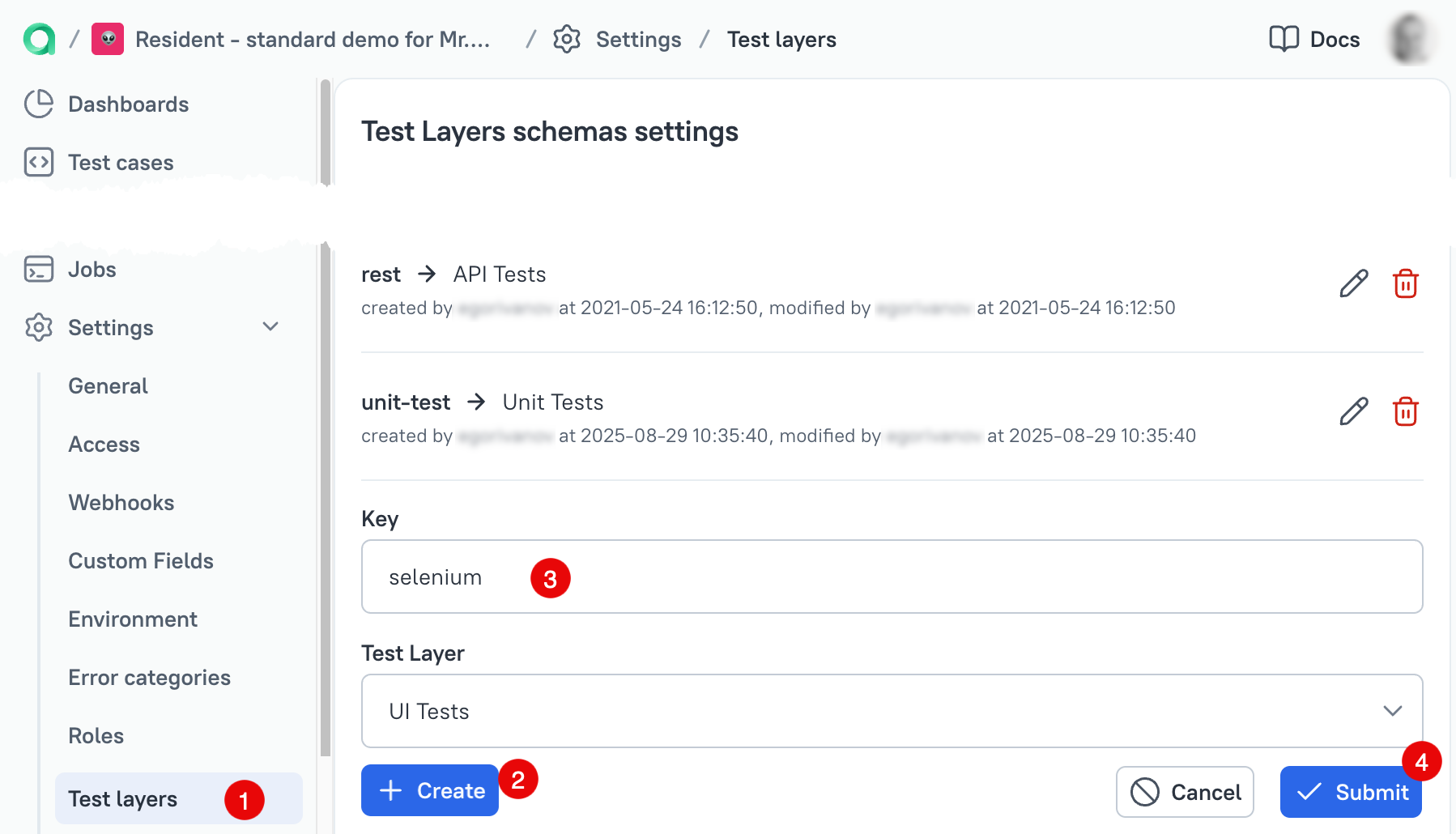
- Go to Administration → Test Layer and create a layer named Selenium.
- Add
allure_label["layer"] = "selenium"to your test. - In the project, go to Settings → Test layers and create a mapping:
- Key:
selenium - Test Layer: UI Tests
- Key:
- Upload a test result. The layer name should appear next to the test name.
For the full layers reference, see Layers.
Members
Member labels link test cases to people — authors, owners, leads. The label key matches a role name, and the value is a username.
Example: set Reviewer to johndoe.
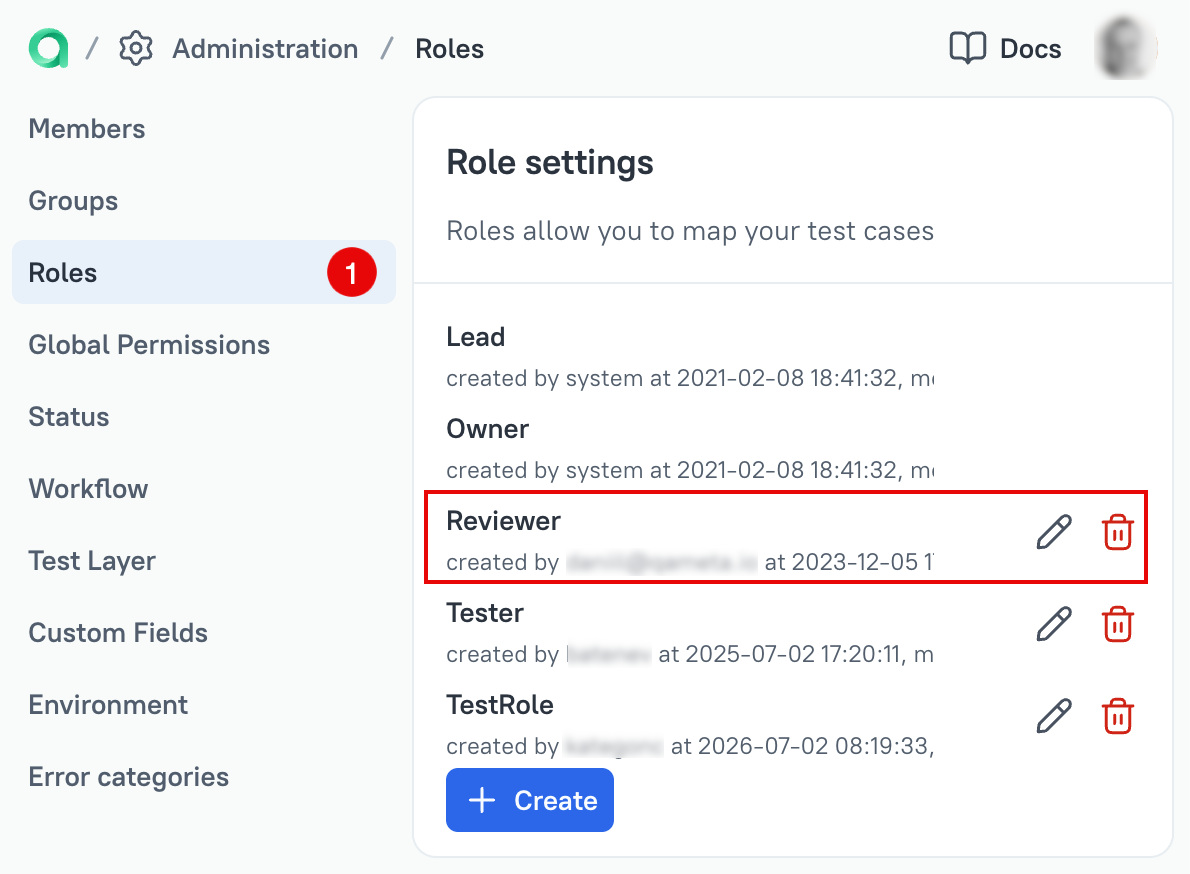
Go to Administration → Roles and add a role named Reviewer.
Add
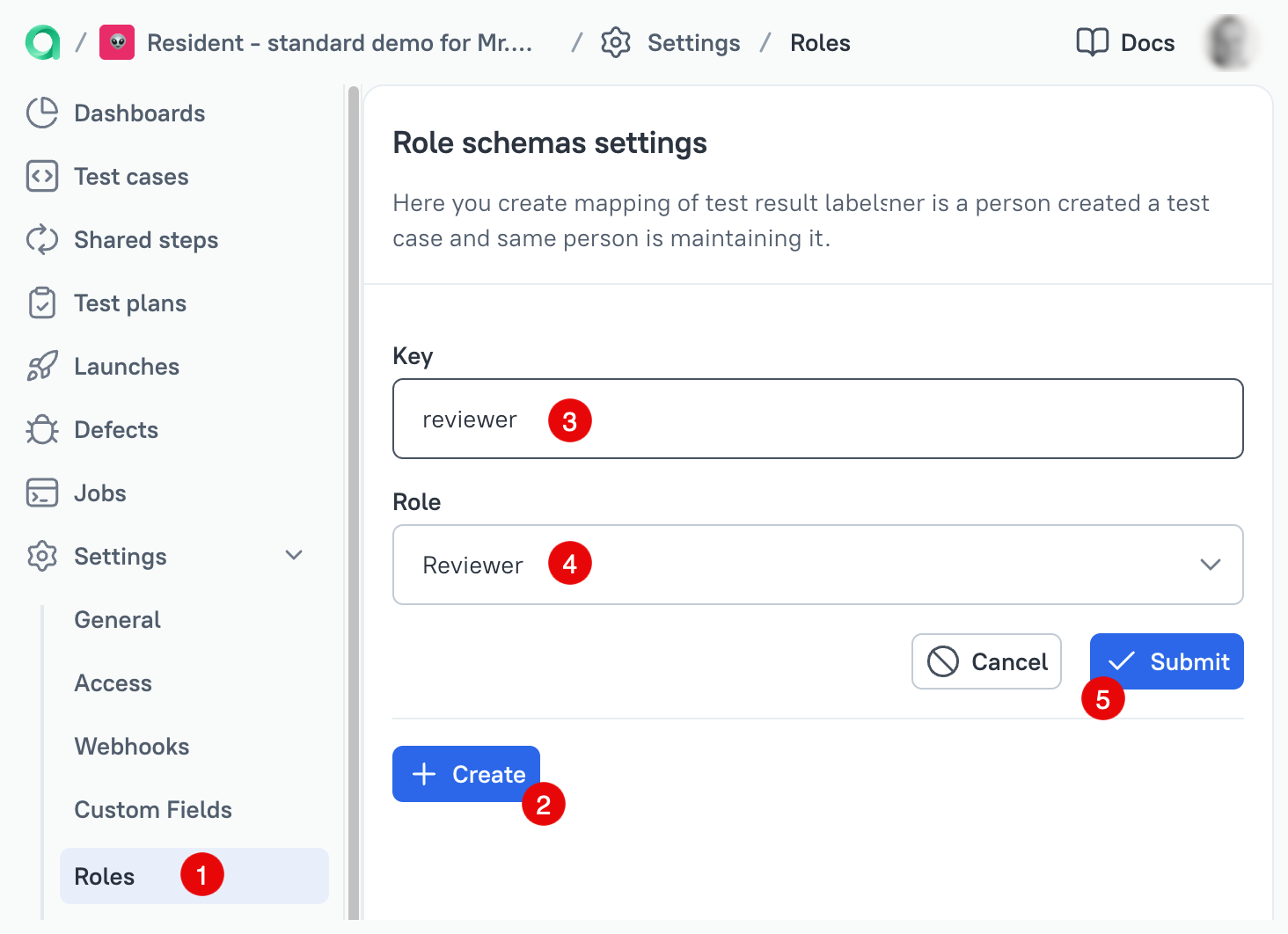
allure_label["reviewer"] = "johndoe"to your test.In the project, go to Settings → Roles and create a mapping:
- Key:
reviewer - Role: Reviewer
- Key:
Upload a test result. The author should appear in the Members section of the test case.
For the full members reference, see Members and ownership.
Issues
Issue labels link test cases to tickets in your issue tracker. The label key identifies the tracker, and the value is the issue ID.
Example: link test cases to Jira issue AE-2.
- Add
allure_label["jira"] = "AE-2"to your test. - In the project, go to Settings → Integrations and configure a Jira integration.
- Go to Settings → Issues and create a mapping:
- Key:
jira - Issue tracker: the Jira integration from the previous step
- Key:
- Upload a test result. The link to AE-2 should appear in the Issue links section of the test case.
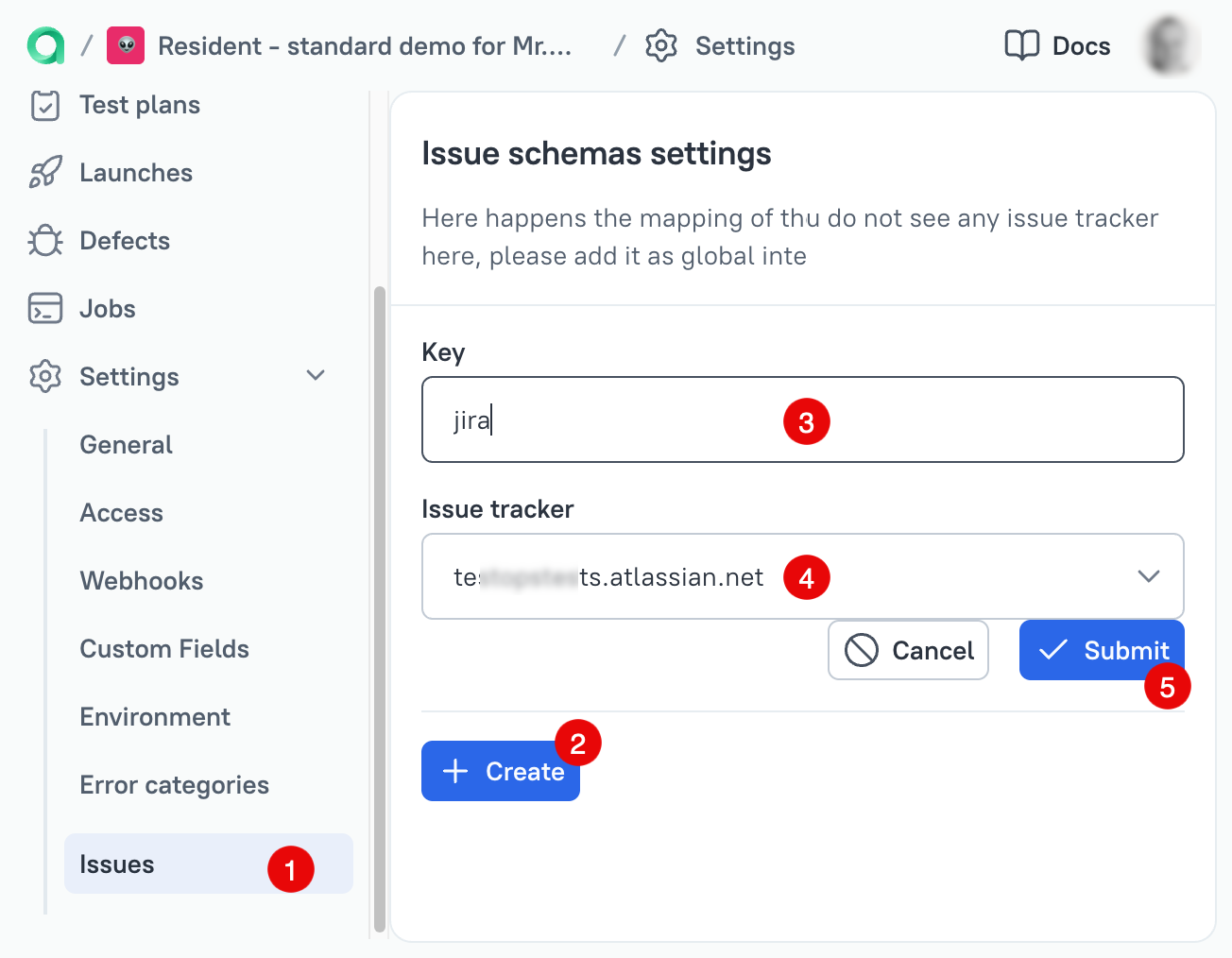
For the full issues reference, see Issues.
Language-specific syntax
The examples above use pseudo code. The way to attach custom labels depends on the framework. In the Allure adapter documentation, find your framework, open its Reference page, and look for the Label section — for example, pytest → Label.
