
Allure TestOps
Use this integration when one Allure TestOps project should export test cases or launches into another Allure TestOps project, either on the same instance or on a different instance. It covers:
- exporting test cases from one TestOps project to another;
- exporting launches for the selected test-case set;
- scoping the export with AQL;
- mapping custom test-case attributes between the source and target instances.
If your real goal is to keep an external test key on a test case, use Test keys and Allure IDs. If your goal is a cutover from another system, use Migrating from other solutions.
Before you begin
- The URL of the recipient TestOps instance.
- An API token created on the recipient instance.
- Access to the source project in TestOps.
- The AQL filters that define which test cases and launches should be exported.
1. Add the global Allure TestOps integration
An instance administrator should:
Open Administration → Integrations in the source TestOps instance.
Click + Add integration.
Select Allure TestOps.
Fill in the fields:
- Name — a stable name for the integration, for example
Allure TestOps production. - Endpoint — the URL of the recipient TestOps instance, for example
https://testops.example.com.
- Name — a stable name for the integration, for example
If the recipient instance uses a self-signed certificate, check Disable certificate validation.
Click Add integration.
2. Get the recipient API token
Create the API token on the recipient instance:
- In the recipient TestOps instance, click your avatar and go to API Tokens.
- Click + Token.
- Enter a name for the token, for example
Allure TestOps integration, and click Create. - Click the Copy icon to copy the token. Save it in a secure location — the token cannot be retrieved from Allure TestOps after the dialog is closed.
If the source and target projects live on different instances, the recipient instance administrator creates the token and shares it with the project owner on the source side.
3. Enable the integration in the source project
- In the source TestOps project, go to Settings → Integrations.
- Find the Allure TestOps integration and click Add integration.
- Paste the recipient API token.
- Click Add integration.
4. Create the export configuration
In the source TestOps project, go to Settings → Integrations and open the Allure TestOps integration.
Go to the TMS Sync tab and click Create.
In the Project list, choose the recipient TestOps project.
Fill in the export scope:
Test Case AQL — an AQL expression for the test cases to export. Leave empty to export all test cases.
An empty Test Case AQL exports all test cases from the source project.
Launches AQL — an AQL expression for the launches to export. Leave empty to export all launches. Select Disable Launches sync to skip launch export entirely.
An empty Launches AQL exports all launches for the selected test-case scope.
Disable Test Case create — enable after the initial export if the target project should only receive updates for already exported cases.
Disable export — enable to pause the configuration without deleting it.
Click Submit.
The TMS sync is automatically disabled if the API credentials are invalid, revoked, or have insufficient access. To restore sync, update the project integration and re-enable the export.
5. Map test-case attributes when needed
Test cases on different TestOps instances may not share the same custom statuses or other attribute values. The default behavior is to ignore all attribute values, including built-in values such as Draft or Review.
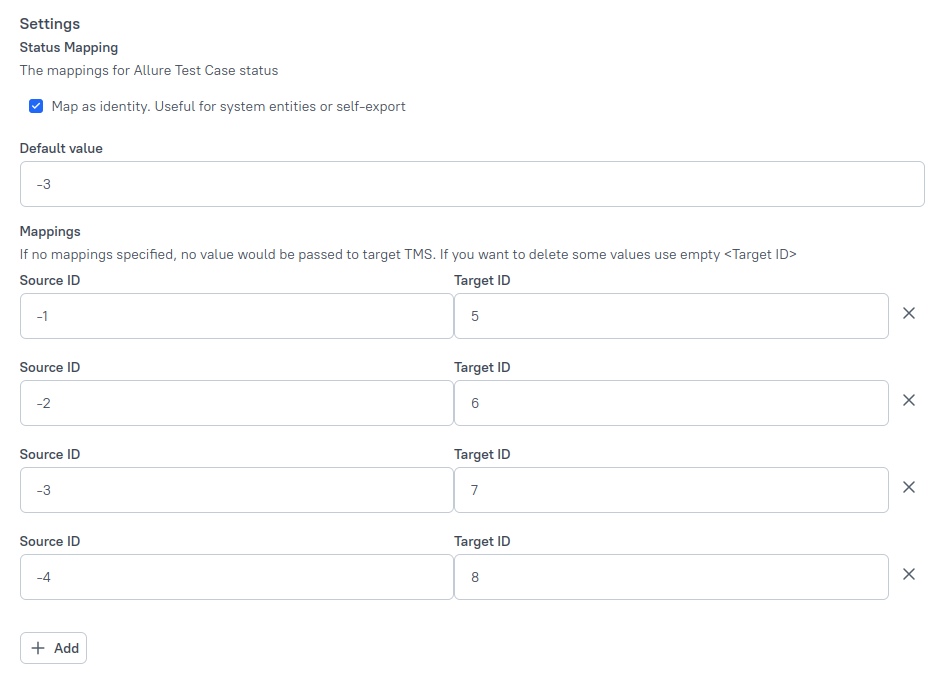
To configure mapping, open the TMS Sync configuration and click Edit:
- Map as identity — enable to export built-in values as-is (Draft → Draft, Review → Review, and so on) without creating individual mapping rows.
- Default value — the target attribute value to use when no mapping row applies. Enter the ID of the value, not its name.
- Add — creates a mapping row with:
- Source ID — the attribute value ID on the source instance;
- Target ID — the matching attribute value ID on the target instance. If Target ID is left empty, the source attribute value is dropped on export.
To find attribute value IDs, open Administration in the relevant TestOps instance and go to the section that owns the value, for example Status.
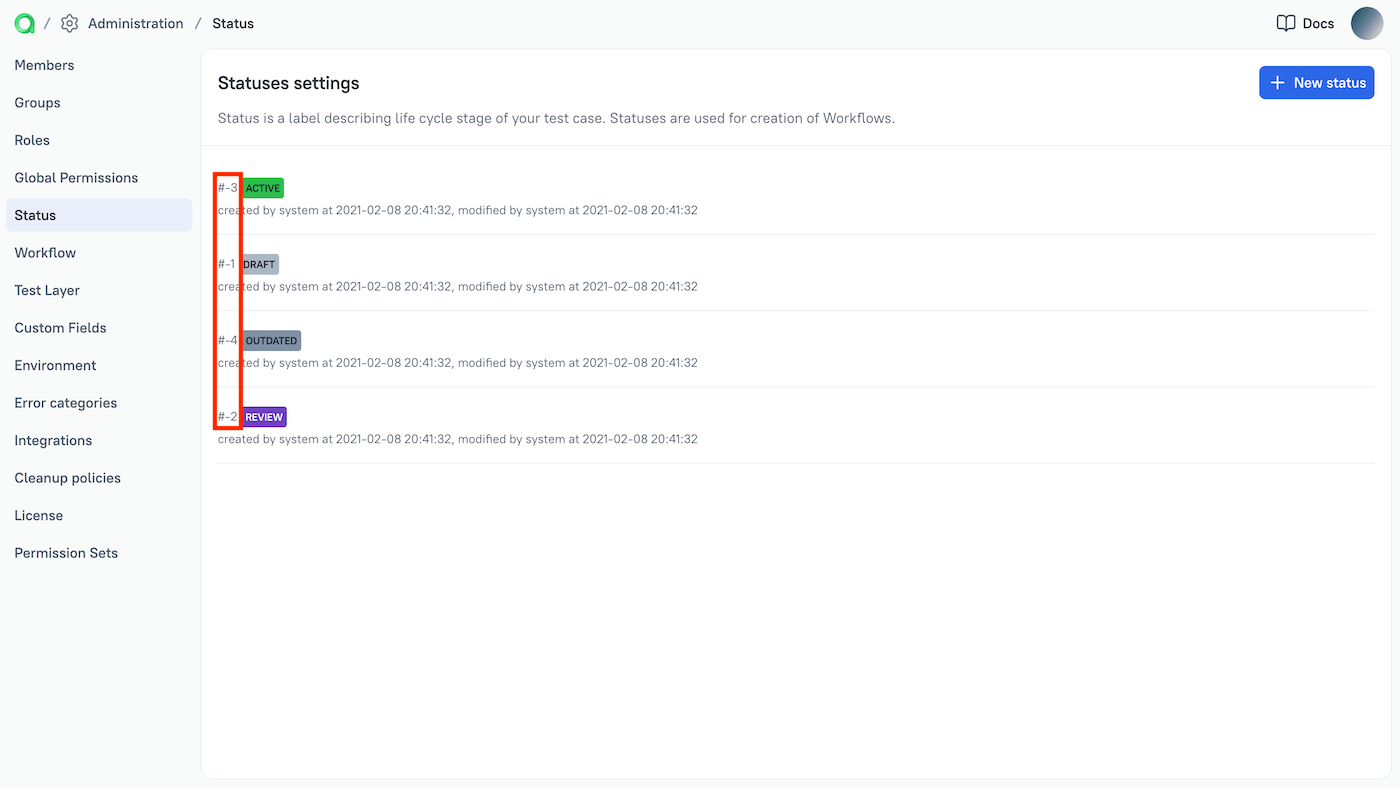
Click Submit to save the mapping.
Verify the integration
- Run the export configuration.
- Open the recipient project and confirm that the expected test cases appear.
- If launch export is enabled, confirm that the expected launches arrive for the exported test-case set.
- Check a mapped attribute on the recipient side and confirm that it uses the expected value.
Troubleshooting
The export configuration disables itself
The recipient API token is invalid, revoked, or no longer has sufficient access to the target project. Replace the token in the project integration and re-enable the export.
The configuration can also disable itself when the recipient project permissions change while the token remains valid.
The test cases arrive but the expected statuses do not
Built-in values are ignored by default, and custom values require explicit source-to-target mapping rows. Check the mapping configuration and verify that the Source ID and Target ID values are correct.
Related pages
- Test management sync and export for the broader exchange model.
- Test keys and Allure IDs for identity linking instead of outbound sync.
- Migrating from other solutions for one-time migration workflows.
