
YouTrack
YouTrack integration connects Allure TestOps artifacts to YouTrack issues. It covers:
- searching and linking YouTrack issues from TestOps;
- authenticating a TestOps project against YouTrack with either a token or a password;
- configuring issue mapping so TestOps can turn test metadata into YouTrack links automatically.
Both YouTrack Cloud and self-hosted YouTrack are supported through the same integration path.
Before you begin
- The URL of the YouTrack instance.
- Either a YouTrack token or a YouTrack username and password.
- The issue-mapping key you want your tests to emit if you use automatic linking.
- Permission to add global integrations in TestOps and to enable them in the target project.
For manual issue linking from a test case, the YouTrack instance must be reachable from the TestOps instance.
1. Add the global YouTrack integration
An instance administrator should:
Open Administration → Integrations in TestOps.
Click + Add integration.
Select YouTrack.
Fill in the fields:
- Name — a stable name for the integration, for example
YouTrack production. - Endpoint — the URL of the YouTrack instance, for example
https://example.youtrack.cloud/.
- Name — a stable name for the integration, for example
If the YouTrack instance uses a self-signed certificate, check Disable certificate validation.
Click Add integration.
2. Create a YouTrack token
Skip this step if you prefer to use a username and password in the next step.
In YouTrack, click your avatar and go to Profile.
Open the Account Security tab.
Under Tokens, click New token.
Fill in the fields:
- Token Name — a name to identify the token, for example
Token for Allure TestOps. - Scope — select YouTrack.
- Token Name — a name to identify the token, for example
Click Create, then click Copy token. Save it in a secure location.
3. Enable YouTrack in the TestOps project
In TestOps, open the target project.
Go to Settings → Integrations.
Under Available integrations, find the YouTrack integration and click Add integration.
Fill in the fields:
- Username — the YouTrack account username.
- Password — the YouTrack account password, or the token from step 2.
Click Test connection. If the credentials are correct, a "Connection established" message appears.
Click Add integration.
4. Configure issue mapping for automatic links
If your tests already emit issue labels through an Allure adapter, create an issue mapping so TestOps can convert those labels into real YouTrack links.
In TestOps, open the target project.
Go to Settings → Issues.
Click + Create.
Fill in the fields:
- Key — the short mapping key your tests emit, for example
youtrack-prod. - Issue tracker — the YouTrack integration you enabled for the project.
- Key — the short mapping key your tests emit, for example
Click Submit.
Example test metadata using the mapping key:
import { test } from "@playwright/test";
import { allure } from "allure-playwright";

test("Some test", async ({ page }) => {
  allure.label("youtrack-prod", "BUG-123");
  // ...
});
Here youtrack-prod is the issue-mapping key and BUG-123 is the YouTrack
issue ID that TestOps should link.
In a real test suite, wrap the label call in your own helper so the mapping key is defined in one place instead of being duplicated across the codebase. See the Allure Report documentation for your test framework.
Verify the integration
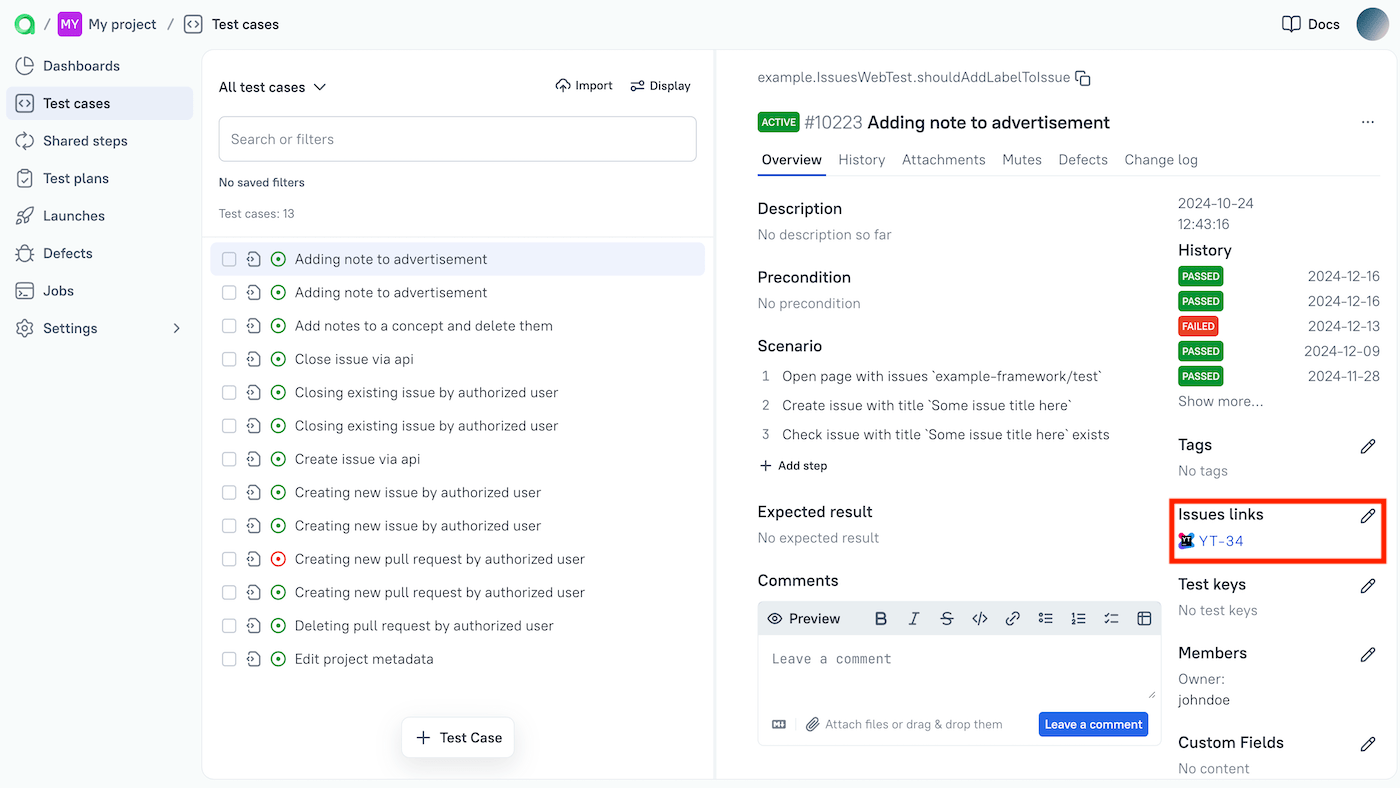
- Open a test case or launch in TestOps and add a YouTrack issue link.
- Confirm that the picker can search the expected YouTrack issues.
- If your tests emit issue metadata, upload a run that contains the mapping key and confirm that TestOps creates the YouTrack links automatically.
Troubleshooting
The issue picker is empty
Check these points:
- The YouTrack project integration is enabled and uses valid credentials.
- The YouTrack instance is reachable from the TestOps instance.
- The user behind the token or password can read the target YouTrack project.
Automatic issue links are not created
The mapping key in Settings → Issues does not match the key emitted by the tests, or the test metadata uses a different issue ID format than the target YouTrack project expects.
Related pages
- Issue trackers and work management for the broader issue-linking model.
- Links, issues, and relations for how linked work items appear in TestOps.
