
ClickUp
This integration is available starting with Allure TestOps version 25.3.1.
ClickUp integration lets Allure TestOps link work items to test artifacts inside the ClickUp workspace your team already uses. It covers:
- linking ClickUp tasks to test cases, launches, defects, and mutes;
- using ClickUp task search from TestOps inside the configured workspace boundary;
- creating ClickUp tasks from defect workflows in TestOps.
ClickUp does not support issue search by ID. When linking TestOps entities to ClickUp tasks, you can only search by task name within the configured list boundary.
Before you begin
- A ClickUp personal API token.
- The ClickUp team ID and at least one list ID that TestOps should search.
- Permission to add global integrations in TestOps and to enable them in the target project.
1. Create the ClickUp API token
- In ClickUp, click your avatar in the upper-right corner and select Settings.
- In the left sidebar, click Apps.
- Under API Token, click Generate.
- Enter your ClickUp account password and click Confirm Password.
- Click Copy to copy the token. Save it in a secure location.
2. Find the ClickUp team ID and list ID
In ClickUp, open the list that TestOps should search.
In the left sidebar, click
⋯next to the list name and select Copy link.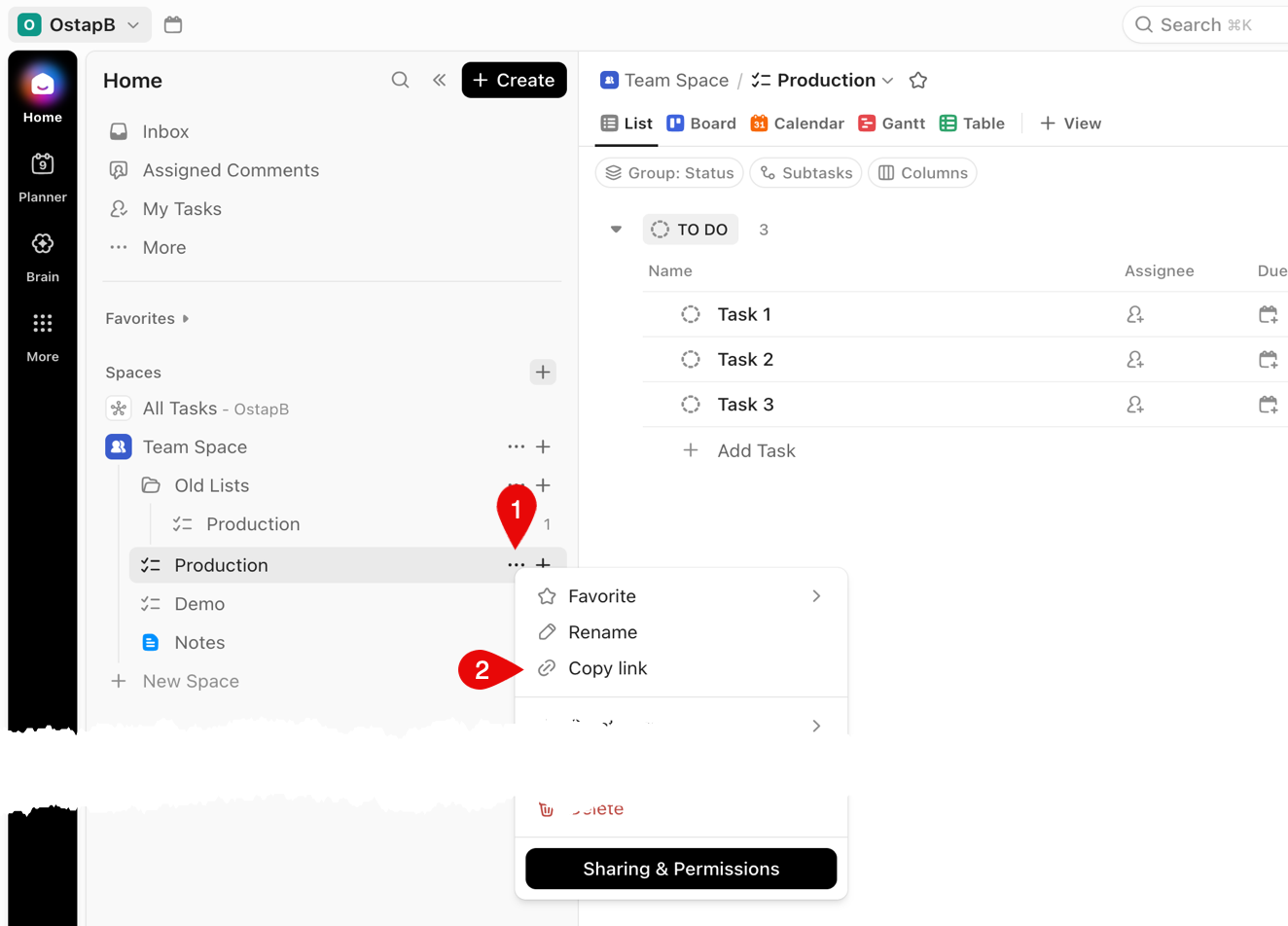
The copied URL has this shape:
https://app.clickup.com/<team_id>/v/li/<list_id>For example, in
https://app.clickup.com/12345/v/li/67890:12345is the team ID;67890is the list ID.
Save both values. If a TestOps project needs access to more than one ClickUp list, repeat this step for each list.
3. Add the global ClickUp integration
An instance administrator should:
Open Administration → Integrations in TestOps.
Click + Add integration.
Select ClickUp.
Fill in the fields:
- Name — a stable name for the integration, for example
ClickUp production. - Endpoint — the base URL of ClickUp:
- cloud:
https://app.clickup.com; - ClickUp Enterprise: the URL of your self-hosted instance.
- cloud:
- Endpoint for API calls — the ClickUp API URL:
- cloud:
https://api.clickup.com/api; - ClickUp Enterprise:
<your-instance-url>/api.
- cloud:
- Name — a stable name for the integration, for example
Click Add integration.
4. Enable ClickUp in the TestOps project
If a list is missing from the project integration, its tasks will not appear in the TestOps issue picker.
Verify the integration
Use both a link flow and a defect flow:
- Open a test case in TestOps and add an issue link.
- Confirm that the ClickUp picker can find tasks from the configured lists.
- Open a defect in TestOps and confirm that the ClickUp create-or-link workflow is available there as well.
Troubleshooting
The ClickUp picker cannot find the task you need
Check these points first:
- the task belongs to one of the configured list IDs;
- the ClickUp token has access to that list;
- the task name matches the search text you enter.
The ClickUp task exists, but searching by ID does not work
This is expected. ClickUp search in TestOps is name-based only. Search by task name within the configured list boundary instead.
Related pages
- Issue trackers for the broader issue-linking model.
- Links, issues, and relations for how linked work items appear in TestOps.
- Defects for defect workflows.
