
GitLab CI
GitLab CI integration connects GitLab pipelines with Allure TestOps: uploads test results during a pipeline run using allurectl, lets TestOps trigger GitLab pipelines, and maps CI variables to launch environments.
This page covers GitLab CI. For issue linking or launch export to GitLab work items, see GitLab Issues.
Before you begin
- The URL of your TestOps instance and the numeric TestOps project ID.
- Access to edit
.gitlab-ci.ymlin the repository. - A GitLab personal or project access token for the TestOps-to-GitLab trigger path.
1. Send results from GitLab to TestOps
Create the TestOps token
- In Allure TestOps, click your avatar and open API Tokens.
- Click + Token.
- Enter a name for the token, for example
Token for GitLab, and click Create. - Copy the generated token.
Store the token in GitLab
- In GitLab, open the project and go to Settings → CI/CD.
- Under Variables, click Add variable.
- Fill in the fields:
- Type — Variable
- Visibility — Masked
- Key —
ALLURE_TOKEN - Value — the API token copied from TestOps
- Click Add variable.
Update .gitlab-ci.yml
Add the required variables, download allurectl in before_script, and wrap the test command with watch:
test:
  stage: test
  image: gradle
  variables:
    ALLURE_ENDPOINT: https://testops.example.com
    ALLURE_PROJECT_ID: 1
    ALLURE_RESULTS: build/allure-results
  before_script:
    - curl -fsSL https://github.com/allure-framework/allurectl/releases/latest/download/allurectl_linux_amd64 -o allurectl
    - chmod +x allurectl
  script:
    - ./allurectl watch -- gradle clean test
ALLURE_ENDPOINT— TestOps base URL.ALLURE_PROJECT_ID— numeric TestOps project ID.ALLURE_RESULTS— directory where the test framework writes Allure result files. To specify multiple directories, separate them with commas or use a wildcard pattern.ALLURE_TOKEN— the masked GitLab variable that stores the TestOps token.
If the runner image does not include curl, use wget or bake allurectl into the runner image.
Verify the upload
After the next pipeline run:
In GitLab, open the job that runs tests. Near the end of its log there should be a link to the TestOps launch.
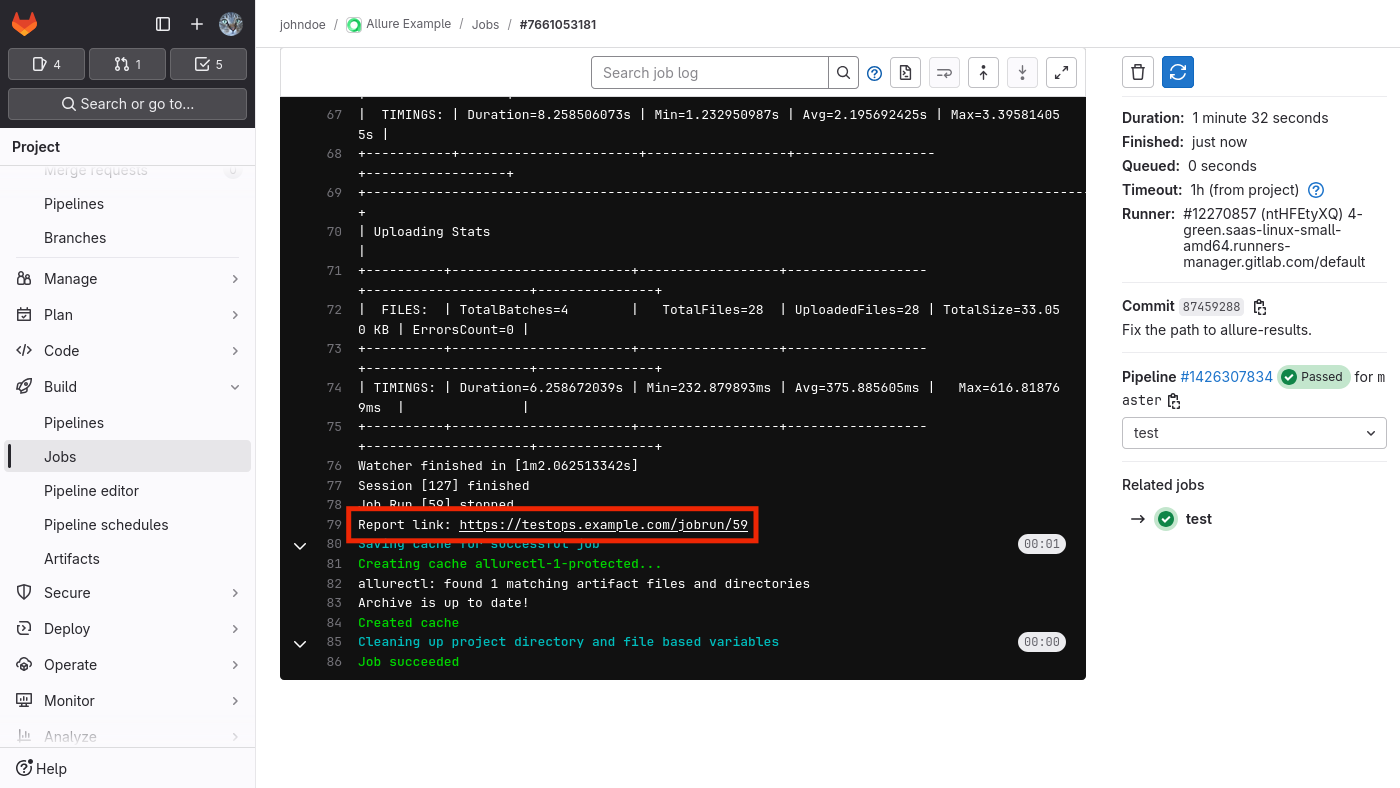
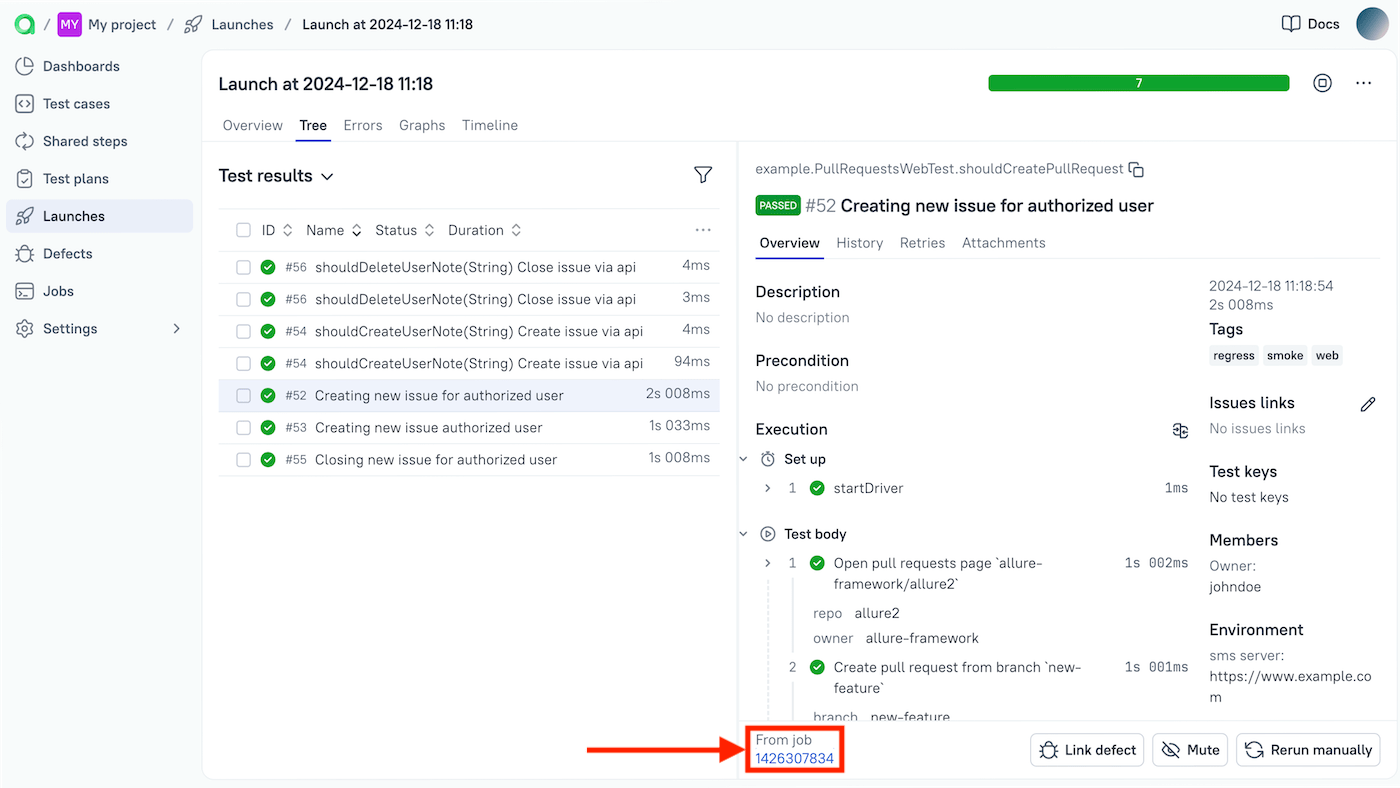
Open the launch in TestOps and confirm test results are present.
Open one result and confirm it links back to the GitLab pipeline.
2. Let TestOps trigger GitLab pipelines
Add the global GitLab integration
An instance administrator should:
- Open Administration → Integrations.
- Click + Add integration.
- Select GitLab.
- Fill in the fields:
- Name — a recognizable name, for example
GitLab production. - Endpoint — the URL of the GitLab instance, for example
https://gitlab.example.com/.
- Name — a recognizable name, for example
- If the GitLab instance uses a self-signed SSL certificate, check Disable certificate validation.
- Click Add integration.
Create a GitLab access token
- In GitLab, click your avatar and go to Preferences.
- In the left menu, click Access Tokens.
- If the token creation form is not visible, click Add new token above the token list.
- Fill in the fields:
- Token name — a recognizable name, for example
Token for Allure TestOps. - Expiration date — how long the token should stay valid. After this date the integration stops working and you must create a new token.
- Select scopes — check
apiandread_api.
- Token name — a recognizable name, for example
- Click Create personal access token. The page reloads and the Your new personal access token field appears at the top. Copy the token.
You can also use a project access token, but it grants access to only one GitLab project.
Add the GitLab integration to the project
- In TestOps, open the target project and go to Settings → Integrations.
- Under Available integrations, find the GitLab integration and click Add integration.
- Enter the GitLab token in the Token field.
- Click Test connection. A "Connection established" message confirms the token is correct.
- Click Add integration.
Configure the GitLab-backed job in TestOps
After the first successful upload, TestOps creates the GitLab-backed job automatically:
Open Jobs in the project.
Click
⋯next to the job and select Configure.Fill in the fields:
- Name — a stable display name.
- Build server — the global GitLab integration added by the administrator.
- Job can be used to run tests — enable to allow triggering from TestOps.
- Parameters — see Section 3.
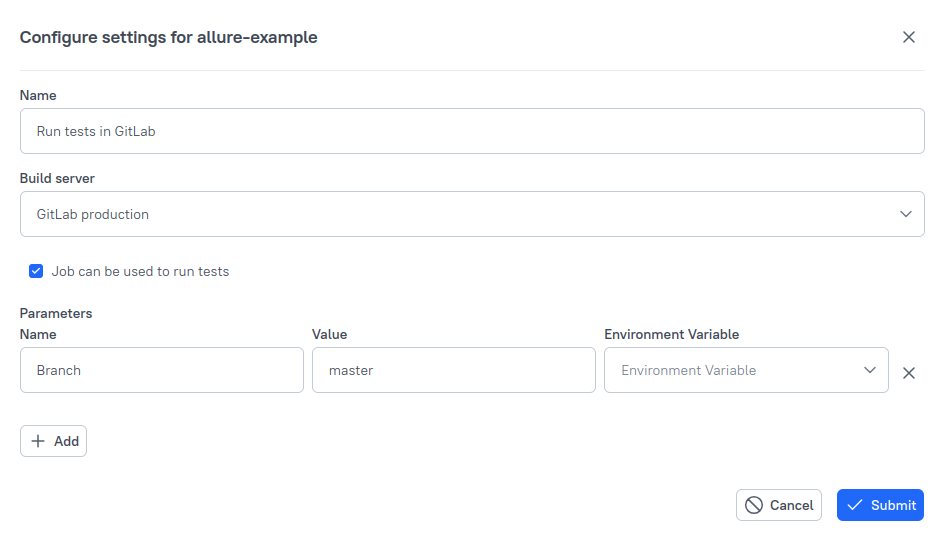
Click Submit.
3. Pass parameters and branch values
GitLab uses CI variables for passing parameters to pipelines. Allure TestOps integrates this with its Environment concept, letting you control parameters for new jobs and see parameters from jobs triggered outside TestOps.
Set default values in GitLab
Add variables and their defaults to the variables block in .gitlab-ci.yml:
test:
  stage: test
  image: gradle
  variables:
    ALLURE_ENDPOINT: https://testops.example.com
    ALLURE_PROJECT_ID: 1
    ALLURE_RESULTS: build/allure-results
    PRODUCT_VERSION: "1.23"
    TESTS_BROWSER: chrome
  before_script:
    - curl -fsSL https://github.com/allure-framework/allurectl/releases/latest/download/allurectl_linux_amd64 -o allurectl
    - chmod +x allurectl
  script:
    - ./allurectl watch -- gradle clean test
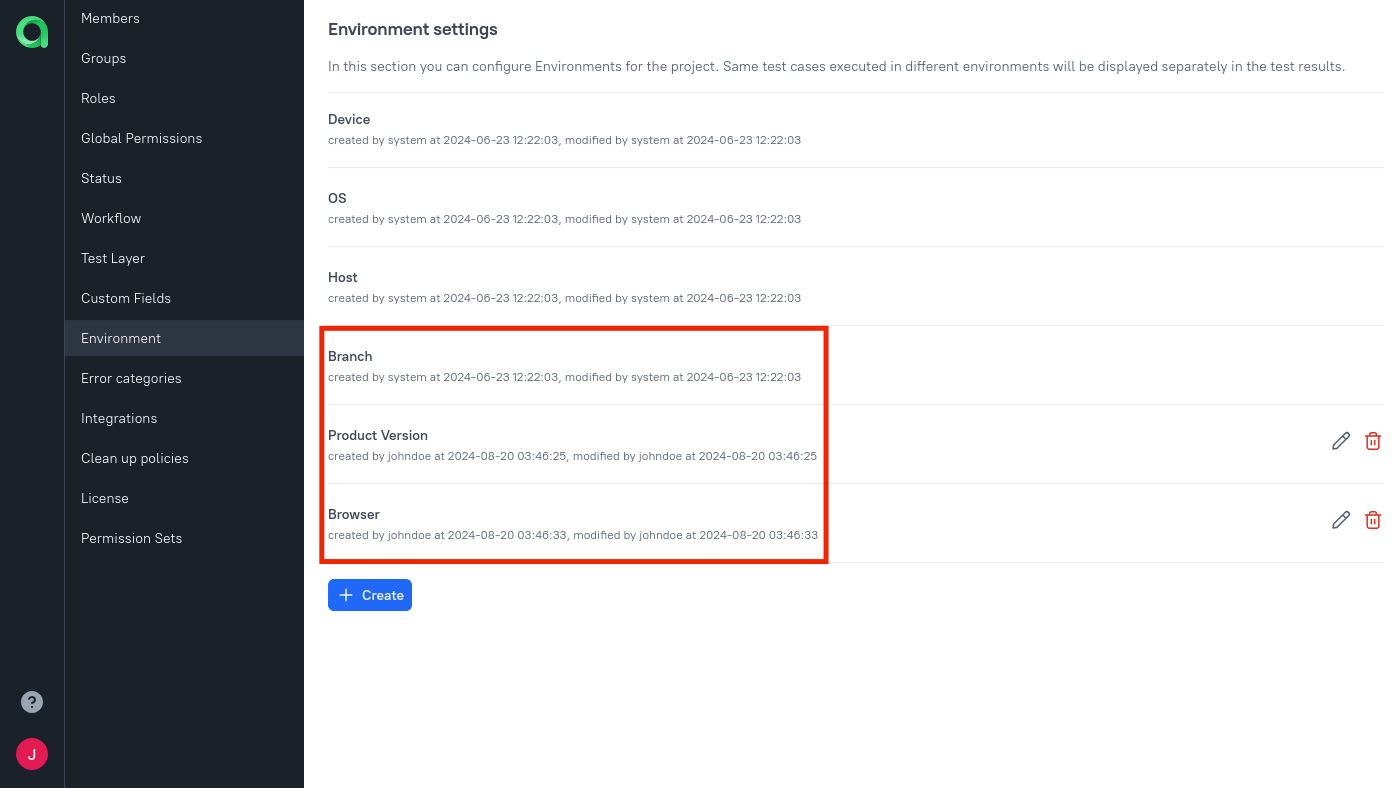
Add global environment names
An instance administrator should:
Open Administration → Environment.
For each parameter, click + Create, enter the name, and click Submit.
Map parameters in the project
In the project, open Settings → Environment.
For each parameter, click + Create (or the edit icon if it already exists):
- Mapping key — the GitLab variable name, for example
TESTS_BROWSER. - Environment variable — the global parameter name created by the administrator.
- Mapping key — the GitLab variable name, for example
Click Submit.
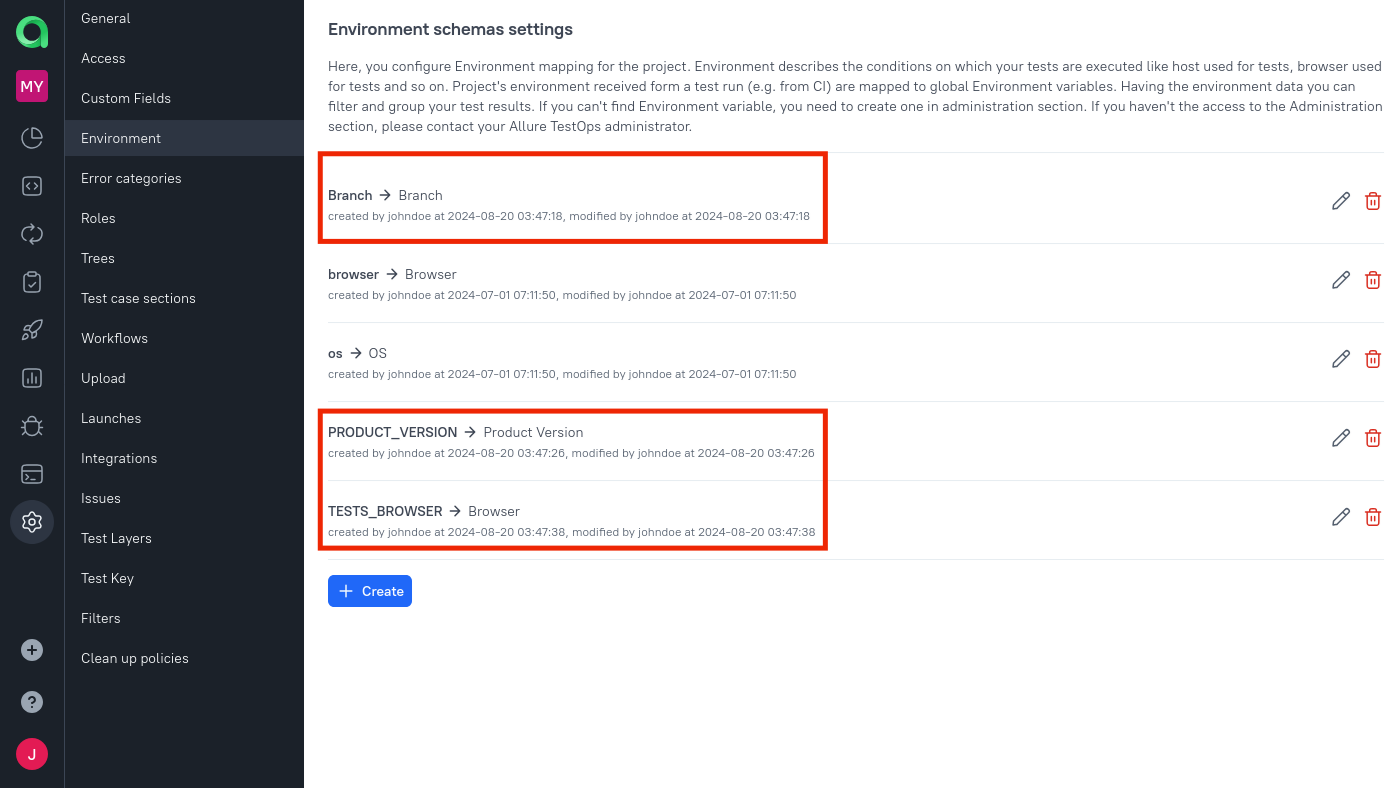
Add parameters to the job
Open Jobs, click
⋯next to the job, and select Configure.In the Parameters section, click Add for each parameter:
- Name — the GitLab variable name (matches the mapping key).
- Value — the default value.
- Environment Variable — the global parameter name.
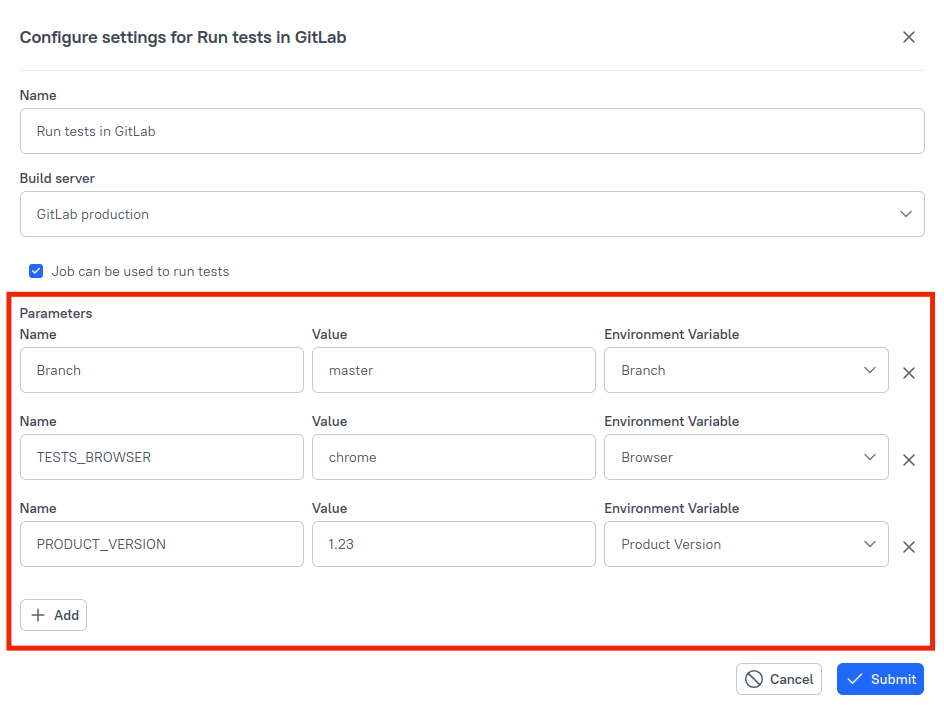
Click Submit.
If the project has multiple branches, add a Branch environment variable in Allure TestOps and map it to the GitLab variable that controls branch selection. This special name instructs GitLab which branch to use when TestOps triggers the pipeline.
Troubleshooting
No results arrive in TestOps
Check:
ALLURE_TOKENis set as a masked variable in GitLab CI/CD settings;ALLURE_ENDPOINT,ALLURE_PROJECT_ID, andALLURE_RESULTSpoint to the expected TestOps project and results directory;- the job runs
./allurectl watch -- <test command>.
TestOps triggers the pipeline but results go into a new standalone launch
ALLURE_JOB_RUN_ID is not reaching allurectl. Confirm that the variable is passed through the pipeline's environment and that the run was triggered from TestOps, not manually from GitLab.
