
Bamboo
Bamboo integration connects Bamboo plans with Allure TestOps via a dedicated Bamboo plugin:
- one job in TestOps corresponds to one Bamboo plan;
- one launch corresponds to one Bamboo build (a sequence of Bamboo jobs).
A build can be triggered by either TestOps or Bamboo, with both sides showing its status.
During test execution, the plugin scans the results directory for new files and uploads each file to TestOps as soon as it appears. TestOps can show partial launch results before the build finishes.
The Bamboo plugin does not support TestOps installations with self-signed certificates. Make sure TestOps uses a properly signed certificate, or make it available to Bamboo over plain HTTP before setting up the integration.
Before you begin
- Permission to install or manage Bamboo apps.
- The URL of your TestOps instance and the numeric project ID.
- A TestOps API token for the upload path.
- A Bamboo account for the trigger path from TestOps.
1. Install the Bamboo plugin
- In Bamboo, click the gear icon in the top right corner and select Manage apps.
- Click Find new apps.
- Search for Allure TestOps for Bamboo.
- Click Install next to the plugin.
- In the dialog, click Install, then Accept & install. Wait until the plugin is downloaded and enabled.
2. Send results from Bamboo to TestOps
Create the TestOps token
- In Allure TestOps, click your avatar and open API Tokens.
- Click + Token.
- Enter a name for the token, for example
Token for Bamboo, and click Create. - Copy the generated token.
Configure the Bamboo plan
- On the Bamboo dashboard, open your build plan.
- Click Actions → Configure plan.
- Go to the Other tab.
- Under Allure Upload, fill in the fields:
- Enable Allure Upload — checked.
- Server endpoint url — the URL of the TestOps instance, for example
https://testops.example.com. - Server token — the API token from the previous step.
- Project id — the numeric ID of the TestOps project.
- Launch name — a template for naming launches. You can use Bamboo variables here.
- Launch tags — comma-separated tags to assign to the launch.
- Click Save.
Set the results directory on the Bamboo job
- Open the same plan and click Actions → Configure plan.
- Click the job that runs the tests.
- Go to the Other tab.
- In Test Results Directories, enter the path to the Allure results directory, for example
build/allure-results. For multiple directories, separate them with commas or use a wildcard pattern, for examplemodules/*/build/allure-results. - Click Save.
3. Let TestOps trigger Bamboo builds
Add the global Bamboo integration
An instance administrator should:
- Open Administration → Integrations.
- Click + Add integration.
- Select Bamboo CI Server.
- Fill in the fields:
- Name — a recognizable name, for example
Bamboo production. - Endpoint — the URL of the Bamboo instance, for example
https://bamboo.example.com/.
- Name — a recognizable name, for example
- If Bamboo uses a self-signed SSL certificate, check Disable certificate validation.
- Click Add integration.
Add Bamboo credentials to the TestOps project
- In TestOps, open the target project and go to Settings → Integrations.
- Under Available integrations, find the Bamboo integration and click Add integration.
- Enter the Username and Password of the Bamboo account.
- Click Test connection. A "Connection established" message confirms the credentials are correct.
- Click Add integration.
Configure the Bamboo-backed job in TestOps
The recommended way is to run the Bamboo plan once — after the first successful upload TestOps creates the job automatically:
- Open Jobs in the TestOps project.
- Click
⋯next to the job and select Configure. - Fill in the fields:
- Build server — the global Bamboo integration added by the administrator.
- Job can be used to run tests — enable to allow triggering from TestOps.
- Click Submit.
Create the job manually
If you cannot run the plan first:
- Open Jobs and click + Job.
- Fill in the fields:
- Build server — the Bamboo integration added by the administrator.
- Can run tests — enable to allow triggering from TestOps.
- Job — the name of the Bamboo plan. The same plan cannot be added twice.
- Parameters — parameters to pass to Bamboo via environment variables.
- Click Submit.
Enable test plan support in the Bamboo job
To allow TestOps-triggered selective execution, add the following environment variable to the Bamboo task that runs the tests:
ALLURE_TESTPLAN_PATH=${bamboo.ALLURE_TESTPLAN_PATH}
On the Bamboo dashboard, open the build plan and click Actions → Configure plan.
Click the job that runs the tests.
In the job's task list, select the task that runs the tests.
In the Environment variables field, add
ALLURE_TESTPLAN_PATH=${bamboo.ALLURE_TESTPLAN_PATH}.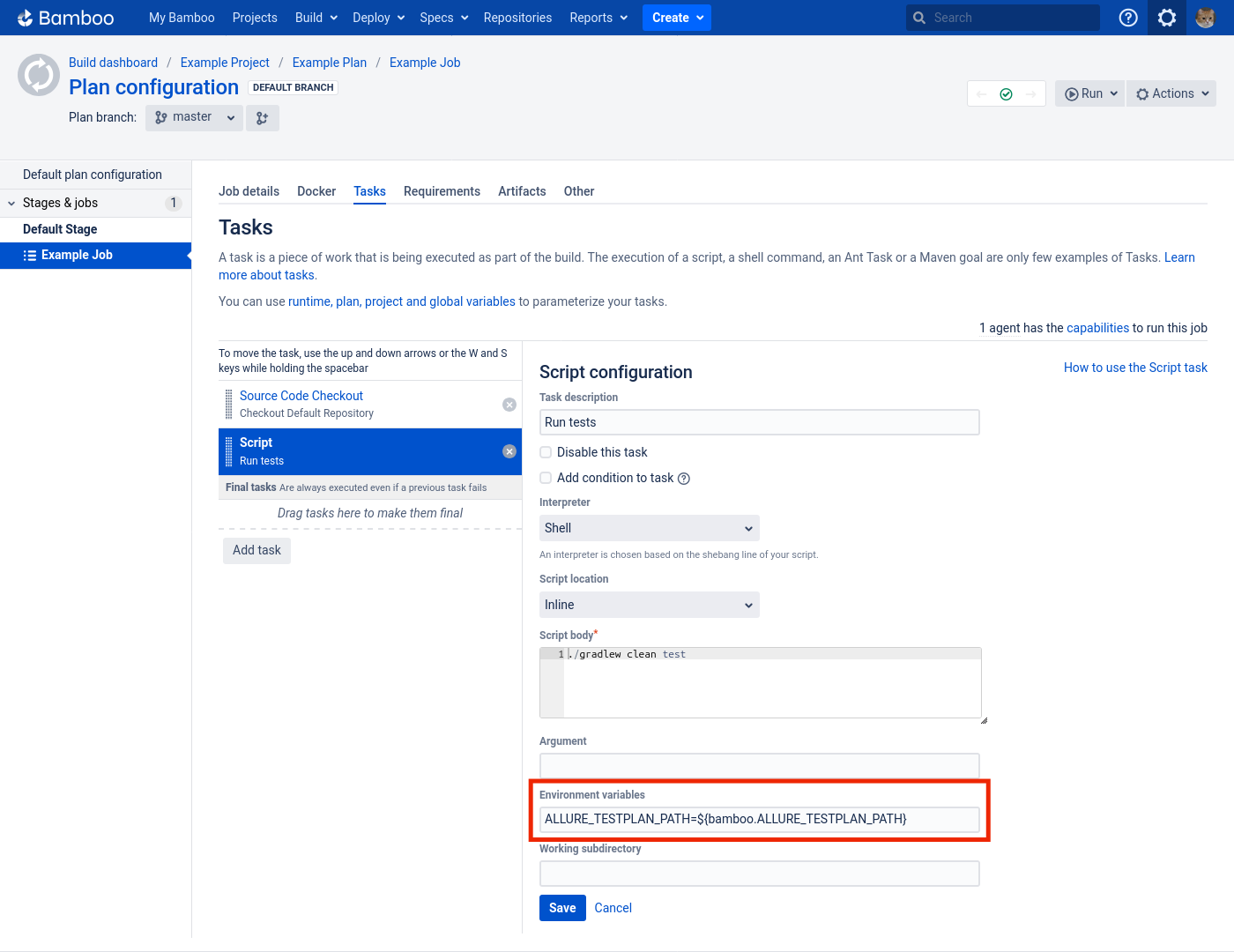
Click Save.
4. Pass parameters and branch values
Bamboo uses variables for passing parameters to builds. TestOps integrates this with its Environment concept.
Set the same default values in both TestOps and Bamboo. This ensures a Bamboo build gets the same environment regardless of what triggered it.
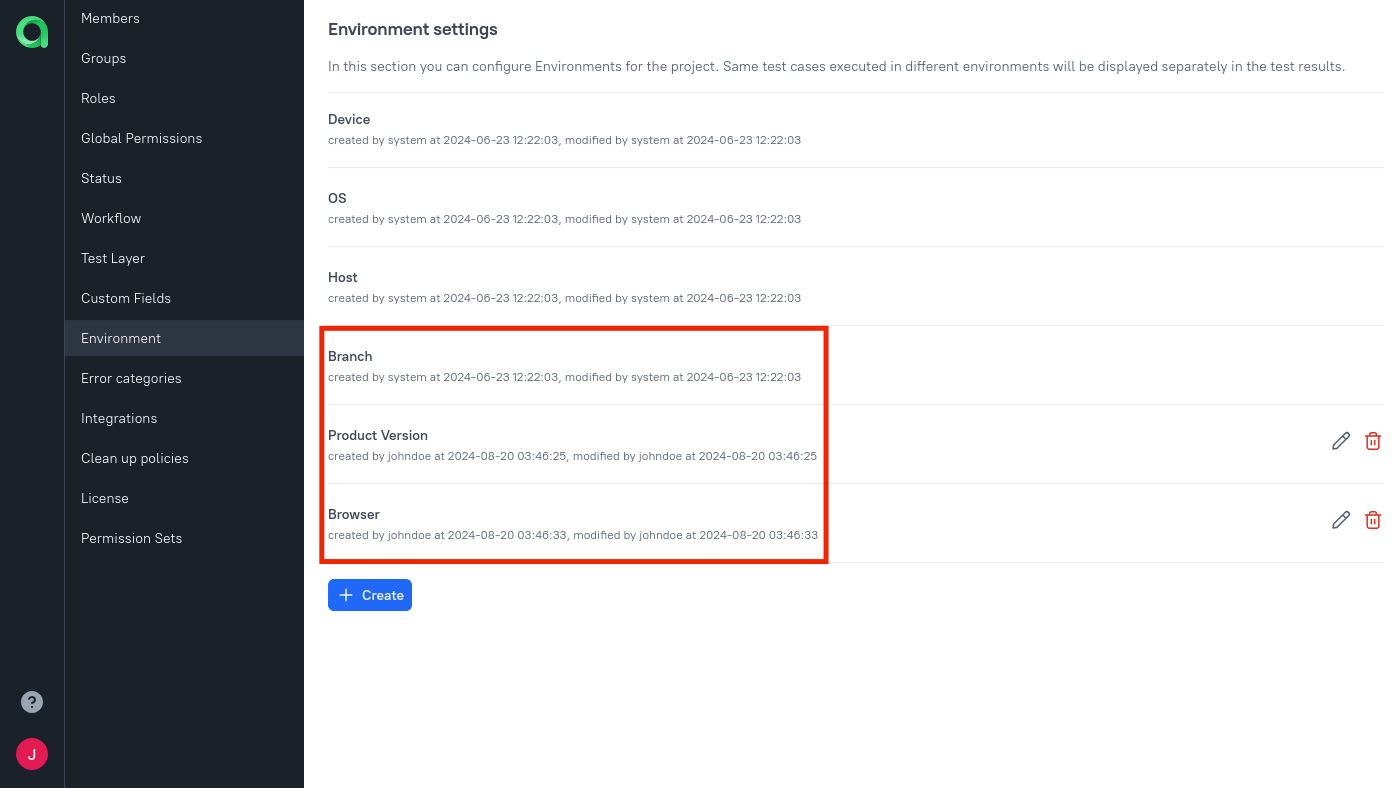
Add global environment names
An instance administrator should:
Open Administration → Environment.
For each parameter, click + Create, enter the name, and click Submit.
Map parameters in the project
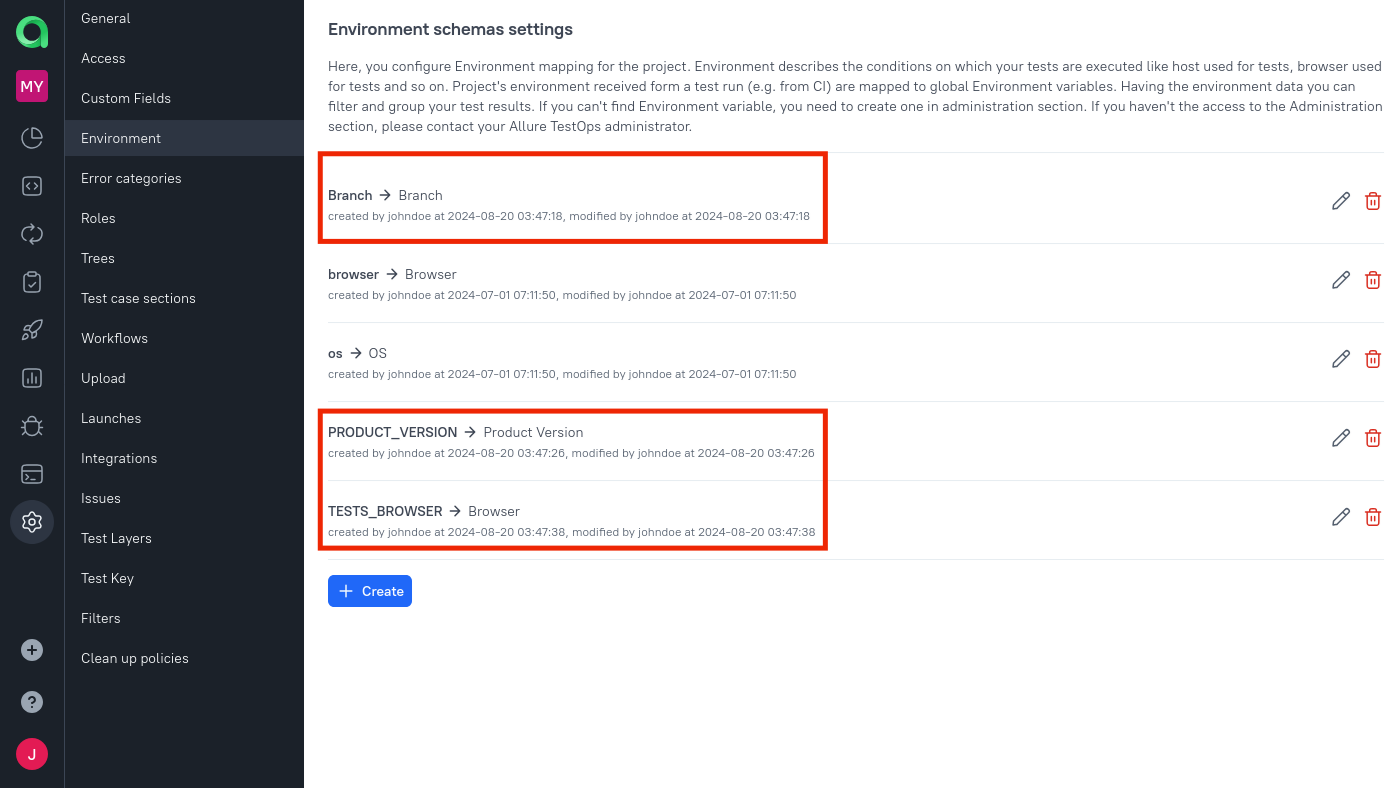
In the project, open Settings → Environment.
For each parameter, click + Create (or the edit icon if it already exists):
- Mapping key — the Bamboo variable name.
- Environment variable — the global parameter name created by the administrator.
Click Submit.
Add parameters to the job
Open Jobs, click
⋯next to the job, and select Configure.In the Parameters section, click Add for each parameter:
- Name — the Bamboo variable name (matches the mapping key).
- Value — the default value.
- Environment Variable — the global parameter name.
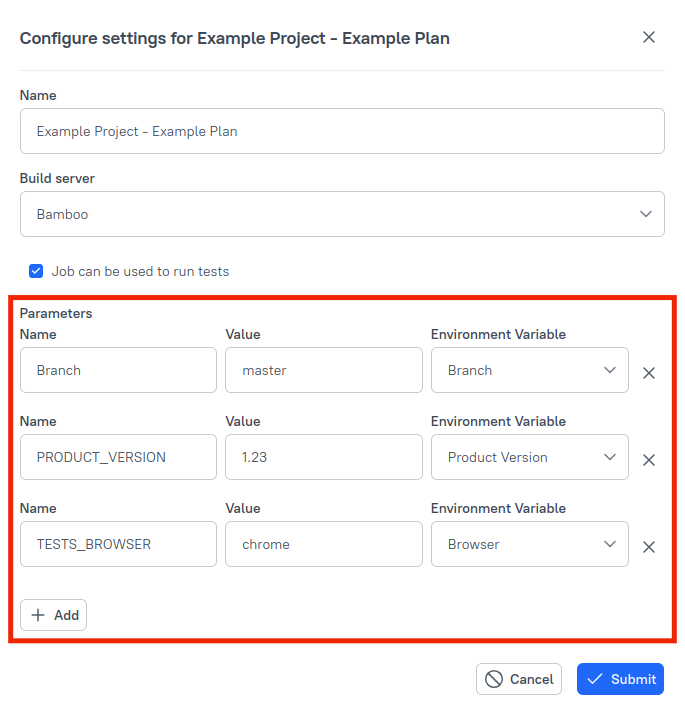
Click Submit.
Set default values in Bamboo
On the Bamboo dashboard, open the build plan and click Actions → Configure plan.
Go to the Variables tab.
For each parameter, fill in Variable name and Value, then click Add.
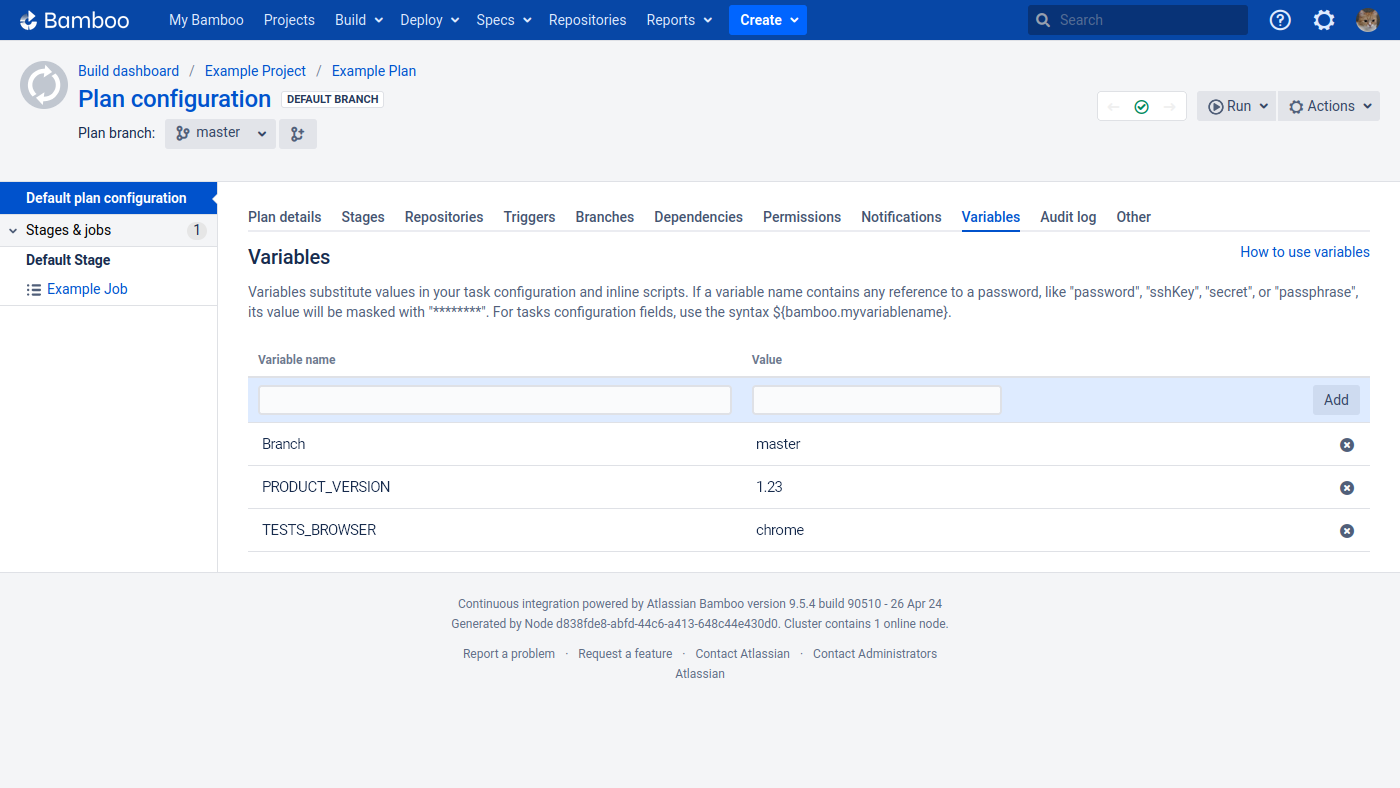
If the Bamboo plan uses multiple branches, add a Branch environment variable in TestOps and map it to the Bamboo variable that controls branch selection.
Troubleshooting
Bamboo finishes the build but no results arrive in TestOps
Check:
- the plan-level Allure Upload settings point to the correct TestOps endpoint and project ID;
- the job-level Test Results Directories points to the directory that actually receives Allure result files;
- the token is valid and belongs to a user who has write access to the project.
A TestOps-triggered build runs all tests instead of the selected ones
The Bamboo task that runs the tests does not expose ALLURE_TESTPLAN_PATH to the runtime. Add the environment variable mapping to the task and re-run the job from TestOps.
