
VS Code plugin
Use the VS Code plugin when you need a lightweight local workflow for Allure Report and for sending local test results to Allure TestOps from Visual Studio Code. It covers:
- configuring a VS Code connection to Allure TestOps;
- uploading local test results to a Allure TestOps project;
- generating, opening, and serving a local Allure Report inside VS Code.
Before you begin
- the URL of the TestOps instance;
- the numeric TestOps project ID;
- a personal TestOps API token;
- local Allure result files produced by your test framework.
For the token workflow, see User menu and API tokens.
Treat the VS Code plugin as a lightweight local workflow. It is a good fit for uploading local results and opening Allure Report views, but not for the richer test-case automation workflows such as Allure ID assignment or manual-case import.
1. Install the extension
Install the extension from the VS Code marketplace or from the command line (Ctrl+P, then paste and press Enter):
ext install qameta.allure-vscode
2. Configure the connection
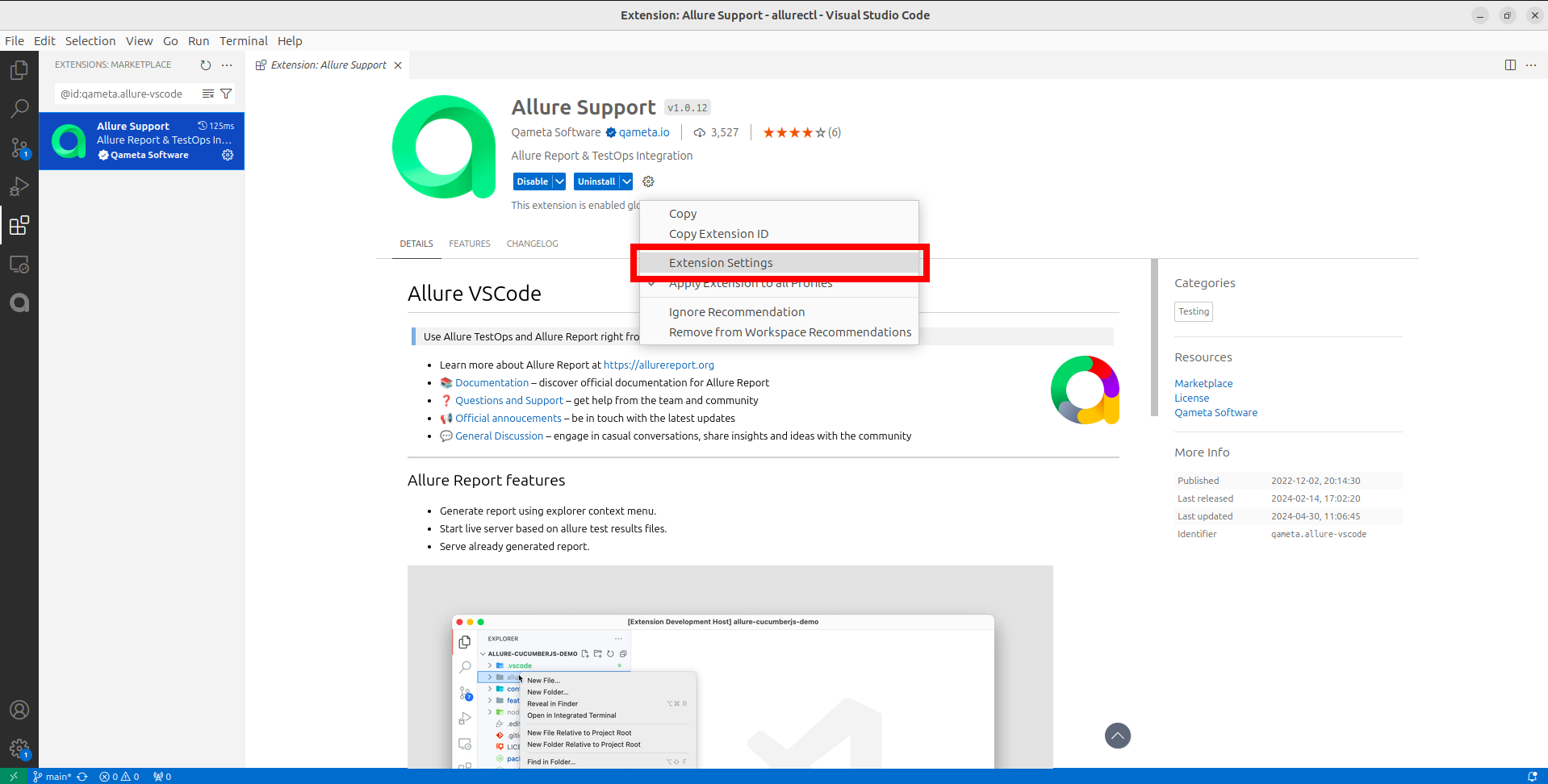
Navigate to the Allure support extension settings in VS Code. Use user-level settings unless you have a deliberate reason to commit values into workspace settings.
Set these three fields:
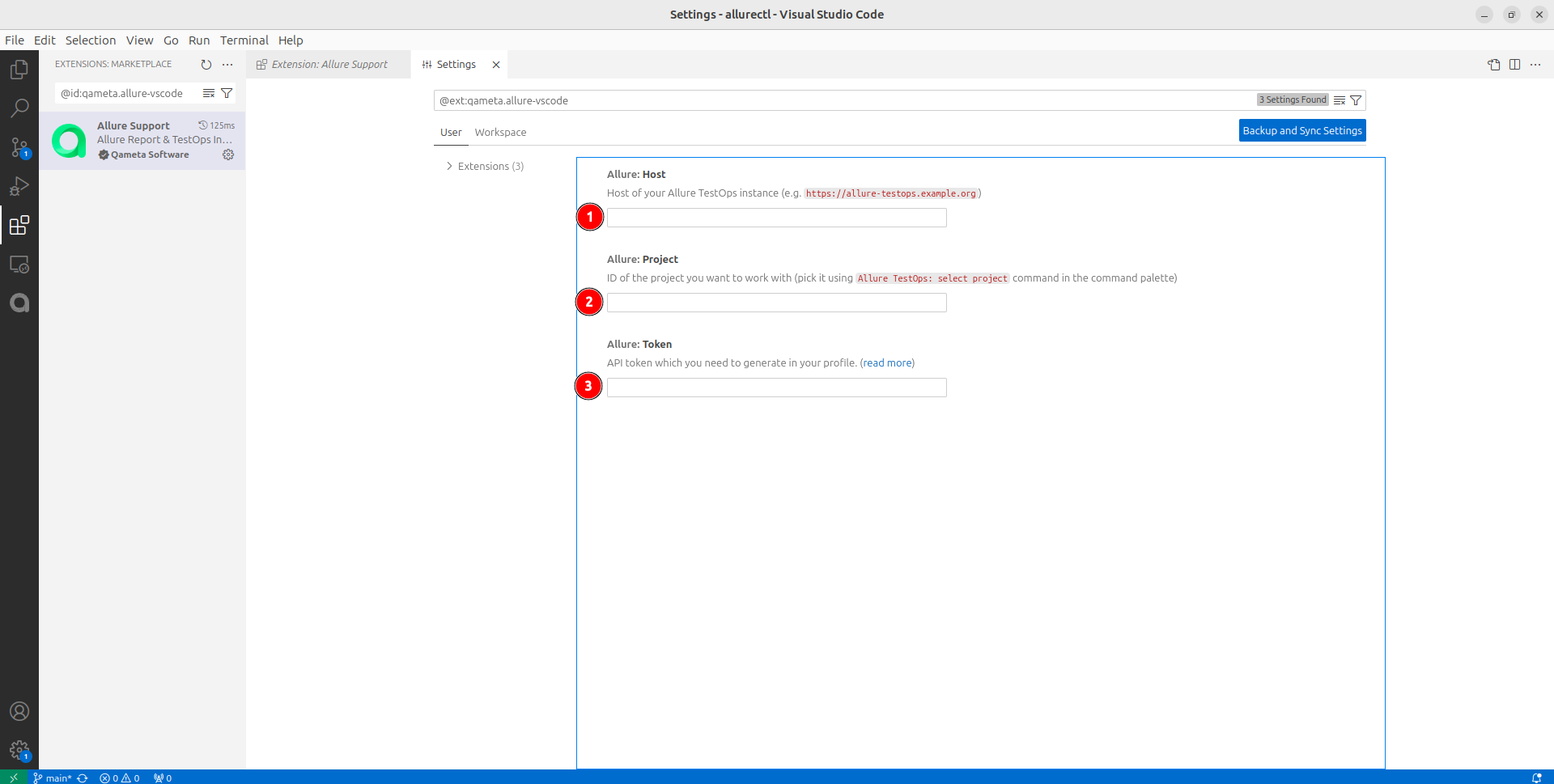
Host — the URL of the TestOps instance.
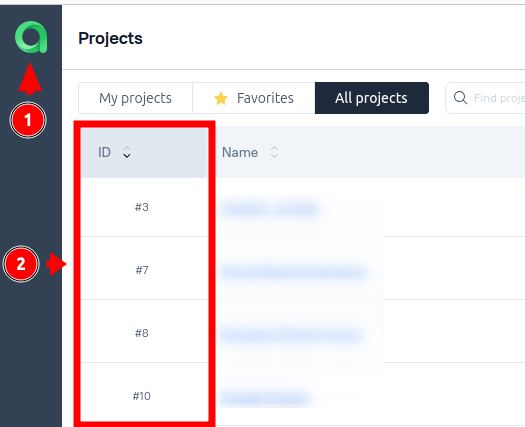
Project — the numeric TestOps project ID. To find it, click the Allure TestOps logo on your instance; the projects page shows the ID next to each project.
Token — a personal TestOps API token. The account behind the token must have at least
ROLE_USERauthority andproject:writepermission on the target project.
3. Upload results to TestOps
After the extension is configured, use the VS Code Allure commands to upload local results to the configured TestOps project.
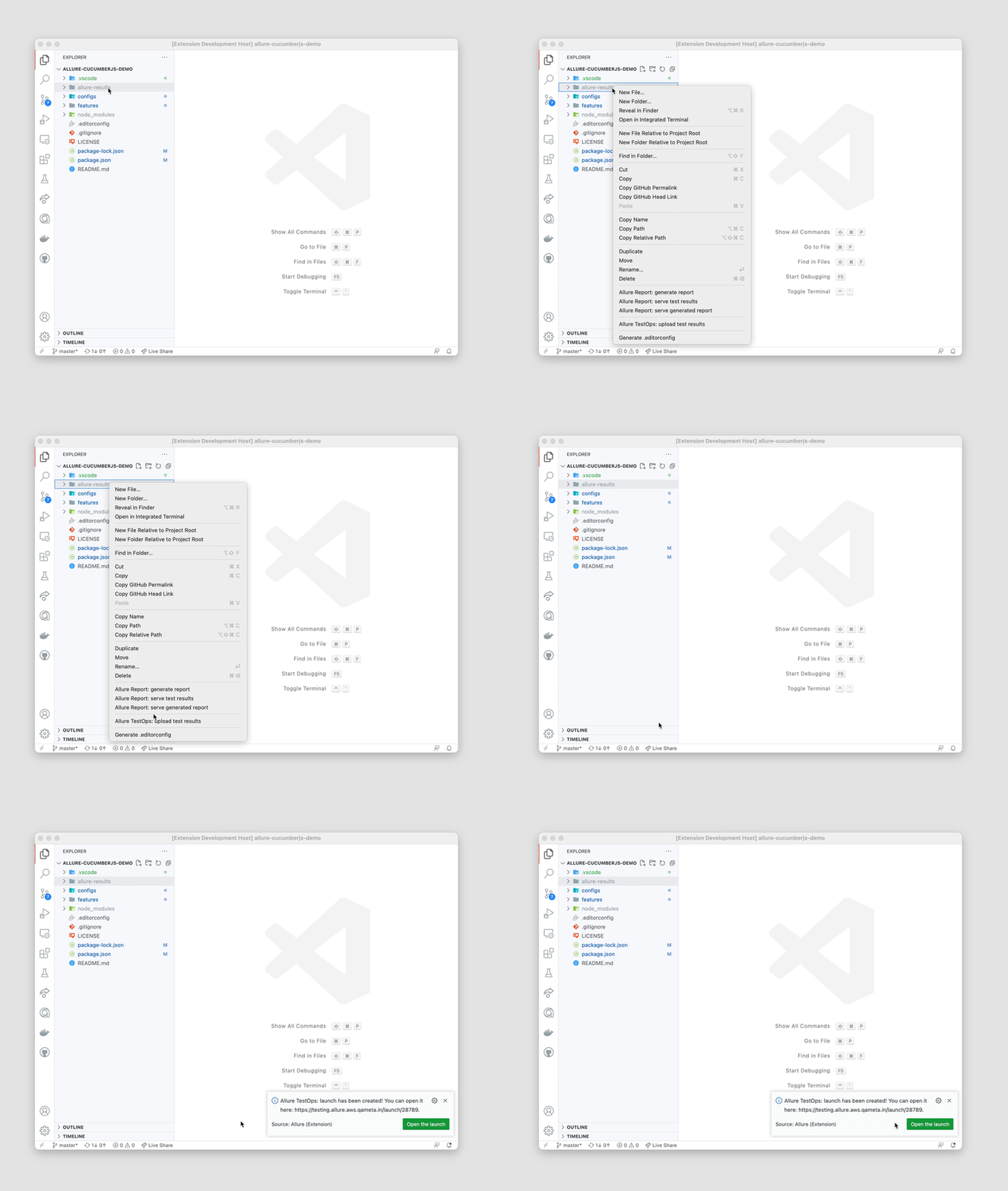
Keep the extension pointed at a single default project while you are validating new automation locally. That makes the upload loop much faster when you are iterating on the same result set.
4. Use local Allure Report
The extension also lets you work with Allure Report locally:
- generate a local Allure Report from result files;
- open the generated report;
- serve the report locally from VS Code.
The exact command entry points may vary by extension version, but they all use the same configured Host, Project, and Token values.
Verify the plugin
- Check that the extension can reach the configured TestOps host.
- Upload a local results directory and confirm that the launch appears in the expected TestOps project.
- Generate or open a local Allure Report from the same result set.
Limitations
- The VS Code plugin is centered on local report and upload workflows.
- If you need the same workflow to run in CI later, use allurectl.
Related pages
- JetBrains IDE plugin for the richer IDE automation workflow.
- Command-line tool - allurectl if you need a CLI workflow instead of an IDE workflow.
